



If you edit illustrations or photos at a desk, a color-focused IPS monitor can give you more workspace; if you want to draw directly on the screen, a pen display is the more relevant tool. This guide to the best monitors for artists compares color coverage, resolution, ports, ergonomics, and drawing features so you can avoid buying a display that does not match your software, computer, or working space.
Compare at a glance
| Product | Brand | Size | Weight | Stands out for | Price |
|---|---|---|---|---|---|
| 1 Sceptre C248W-1920RN 24-Inch Curved Monitor | Sceptre | 16.04 × 21.61 × 9.06 in | 6 lb | 1080p resolution on a 24-inch screen | Check price |
| 2 Dell S3225QS 32-Inch 4K Monitor | Dell | 8.73 × 28.05 × 17.55 in | 19 lb | 4K resolution on a 31.5-inch screen | Check price |
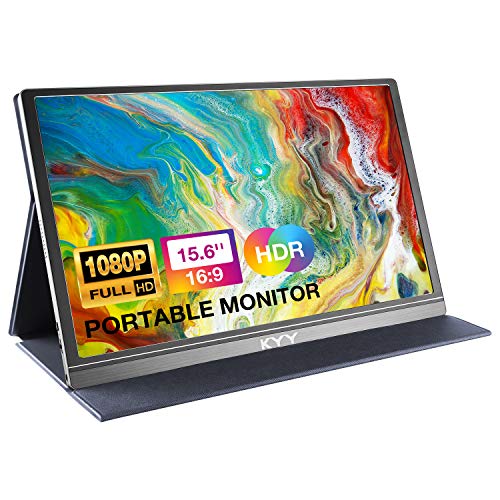
| 3 KYY 15.6-Inch 1080p Portable Monitor | KYY | 8.85 × 14.48 × 0.35 in | 1.7 lb | Full HD IPS display | Check price |
| 4 Amazon Basics 27-Inch 100Hz Monitor | Amazon Basics | 24.07 × 9.05 × 17.96 in | 8.4 lb | 27-inch IPS display with wide viewing angles | Check price |
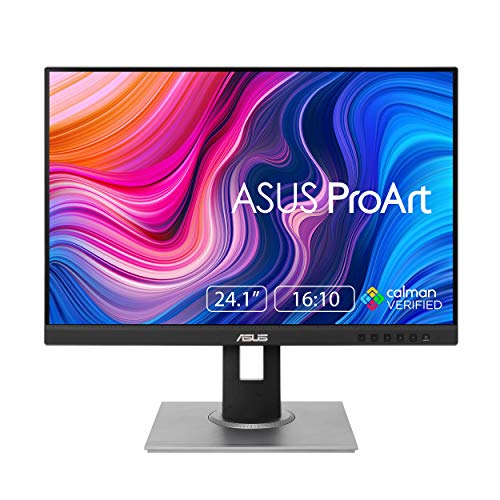
| 5 ASUS ProArt PA248QV 24-Inch WUXGA Monitor | ASUS | 22.55 × 18.66 × 7.56 in | 13 lb | IPS panel with Calman verification | Check price |
| 6 Samsung Odyssey G5 G50F 27-Inch QHD | Samsung | 9.9 × 24.2 × 20.4 in | 9 lb | 27-inch QHD IPS panel | Check price |
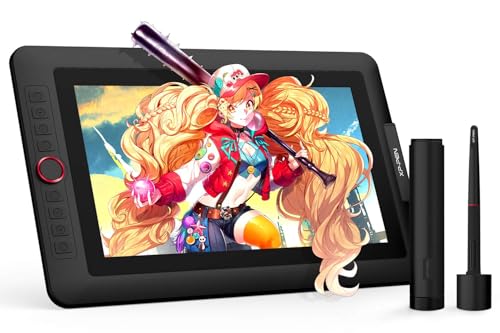
| 7 XPPen Artist 13.3 Pro V2 Drawing Tablet | XP-Pen | 9.84 × 15.37 × 0.04 in | 4.4 lb | Not listed | Check price |
| 8 BenQ PD2705Q 27-Inch QHD Monitor | BenQ | 19 × 26.5 × 9 in | 19 lb | 27-inch QHD IPS display | Check price |
| 9 XP-Pen Artist 22 2nd 21.5-Inch Pen Display | XP-Pen | 23.4 × 5.5 × 16.5 in | Not listed | Large 21.5-inch drawing surface | Check price |
Sizes and weights as listed by the manufacturer on Amazon. Check the retailer for current price and availability.
Pros
- 1080p resolution on a 24-inch screen
- Two HDMI ports plus VGA
- Built-in speakers
- VESA mount ready
Cons
- Who should skip it: players seeking refresh rates above 75Hz
Pros
- 4K resolution on a 31.5-inch screen
- 120Hz refresh rate with FreeSync Premium
- Wide stated color coverage
- Anti-glare screen
Cons
- HDR performance details are limited
- Who should skip it: buyers prioritizing clearly specified HDR performance
Pros
- Full HD IPS display
- USB-C and Mini-HDMI inputs
- Lightweight, slim design
- Cover doubles as a stand
Cons
- One-cable USB-C use requires a compatible device
- Who should skip it: users needing a highly adjustable stand

Pros
- 27-inch IPS display with wide viewing angles
- 100Hz maximum refresh rate
- Four built-in USB ports
- Integrated speakers and VESA compatibility
Cons
- Who should skip it: users who need resolution above 1080p
Pros
- IPS panel with Calman verification
- Four-way ergonomic stand adjustment
- Anti-glare screen
Cons
- Who should skip it: users needing resolution above 1920 x 1200

Pros
- 27-inch QHD IPS panel
- 180Hz refresh rate
- G-Sync compatibility and AMD FreeSync
- Height-adjustable, pivoting, tilting, swiveling stand
Cons
- Who should skip it: buyers seeking refresh rates above 180Hz
Best for a laptop desk

Pros
- 27-inch QHD IPS display
- Factory-calibrated with color report
- USB-C with 65W power delivery
- KVM switch and daisy-chain support
Cons
- Who should skip it: buyers who require a stated refresh rate

Pros
- Large 21.5-inch drawing surface
- Adjustable 16-to-90-degree stand
- Battery-free, tilt-capable stylus
- Broad stated software compatibility
Cons
- Who should skip it: users with limited desk space
Key Numbers at a Glance
- The ASUS ProArt PA278QV is 27 inches with 2560 x 1440 resolution; the ASUS ProArt PA248QV is 24 inches with 1920 x 1200 resolution.
- The BenQ PD2705Q lists 100% sRGB and 100% Rec.709 coverage, plus a 65W USB-C connection.
- The XP-Pen XPPen Artist 13.3 Pro V2 Drawing Tablet has a 13.3-inch FHD screen and 8 customizable shortcut keys.
- The XP-Pen Drawing Tablet with Screen XPPen Artist 22 2nd has a 21.5-inch screen and an adjustable stand from 16 to 90 degrees.
Best Color-Accurate 27-Inch Monitor: ASUS ProArt PA278QV 27-Inch QHD Monitor
The ASUS ProArt PA278QV 27-Inch QHD Monitor pairs a 27-inch, 2560 x 1440 IPS panel with 100% sRGB and Rec.709 coverage and Calman verification with Delta E under 2. Its adjustable stand supports height, tilt, pivot, and swivel, and its listed connections include DisplayPort, HDMI, DVI-D, and Mini DisplayPort. The trade-off is that it is a conventional monitor, not a screen you draw on with a pen.
Skip it if drawing directly on the display is central to your workflow.
Best for a Laptop-Centered Art Desk: BenQ PD2705Q 27-Inch QHD Monitor
The BenQ PD2705Q 27-Inch QHD Monitor offers a 27-inch QHD IPS screen, factory calibration, 100% sRGB and Rec.709 coverage, and stated average Delta E of 3 or less. Its USB-C connection includes 65W power delivery, and the product page also lists a USB hub and daisy-chain connectivity. Confirm that your laptop supports display output and charging over USB-C before relying on one-cable setup.
Skip it if your computer lacks a suitable USB-C display connection or you need a pen display.
Best Compact Pen Display: XP-Pen XPPen Artist 13.3 Pro V2 Drawing Tablet
The XP-Pen XPPen Artist 13.3 Pro V2 Drawing Tablet is a 13.3-inch FHD pen display with a fully laminated screen, stated 123% sRGB coverage, tilt support up to 60 degrees, and 8 shortcut keys. It connects to a computer using its included 3-in-1 cable, so it is a drawing display rather than a standalone computer. Its smaller screen is easier to fit on a crowded desk than a 21.5-inch drawing display, but offers less canvas area.
Skip it if you want a large drawing surface or a monitor that works without a connected computer.
Best Large-Screen Pen Display: XP-Pen Drawing Tablet with Screen XPPen Artist 22 2nd
The XP-Pen Drawing Tablet with Screen XPPen Artist 22 2nd has a 21.5-inch display, stated 122% sRGB coverage, and a battery-free stylus with 8,192 pressure levels and tilt support. Its stand adjusts from 16 to 90 degrees, which gives you more positioning choice for drawing. The larger display needs more desk room, and USB-C to USB-C connection requires a cable sold separately.
Skip it if desk space is tight or you need a portable pen display.
How to Choose a Monitor for Art
Color coverage and calibration
Bottom line: Match the monitor’s color coverage to the content you create, and look for stated calibration details when color consistency matters. The ASUS ProArt PA278QV lists 100% sRGB and Rec.709 coverage and Calman verification with Delta E under 2; the BenQ PD2705Q lists 100% sRGB and Rec.709, factory calibration, and average Delta E of 3 or less. These specifications are useful for comparing claims, but they do not guarantee that every screen will look identical to another display or a printed result.
For digital illustrations and general design, sRGB coverage is a practical point of comparison. If your work targets a specific print or video color space, confirm that the monitor and your software support the workflow you need; our guide to best monitors for video editing covers related color and resolution decisions.
Screen size and resolution
Bottom line: Choose a screen size and resolution that leave enough room for your canvas and tools at your normal viewing distance. The ASUS ProArt PA278QV combines 27 inches with 2560 x 1440, while the 24-inch ASUS ProArt PA248QV uses 1920 x 1200 and a 16:10 aspect ratio. The PA248QV’s extra vertical workspace compared with a 16:9 screen at the same width can suit documents and tall canvases, while the larger QHD display gives you more pixels overall.
Pen displays trade conventional monitor flexibility for direct drawing. The XP-Pen Artist 13.3 Pro V2 is 13.3 inches at FHD; the XP-Pen Artist 22 2nd has a 21.5-inch screen. Check your desk footprint and the display scaling you prefer before choosing between them.
Pen input or a standard monitor
Bottom line: Buy a pen display only if drawing on the screen is worth the added desk space and computer connection. The XP-Pen Artist 13.3 Pro V2 lists a tilt-capable stylus and 8 shortcut keys; the XP-Pen Artist 22 2nd lists a battery-free stylus with 8,192 pressure levels and tilt support. Both require a computer, so they do not replace a desktop or laptop.
A standard monitor is the simpler choice if you draw on a separate tablet or use a mouse and keyboard. The ASUS ProArt models and BenQ PD2705Q focus on viewing and color, rather than pen input.
Ports and laptop compatibility
Bottom line: Check the computer’s video outputs and the monitor’s inputs before buying, especially if you expect USB-C to carry video and power. The BenQ PD2705Q lists USB-C with 65W power delivery, HDMI, DisplayPort, a USB hub, and daisy-chain capability. The ASUS ProArt PA278QV lists DisplayPort, HDMI, DVI-D, and Mini DisplayPort, while the PA248QV lists DisplayPort, HDMI, and D-Sub.
USB-C alone does not establish that a computer supports display output or charging at the level you want. Verify the laptop’s specifications and the monitor’s connection requirements. For a MacBook-focused comparison, see best monitors for MacBook Air.
Stand, mounting, and desk fit
Bottom line: Prioritize adjustment options if you spend long sessions at the display, and confirm mounting support if you plan to use an arm. Both ASUS ProArt monitors list stands with height, tilt, pivot, and swivel adjustment. The XP-Pen Artist 22 2nd stand adjusts from 16 to 90 degrees, while the Artist 13.3 Pro V2 includes an adjustable stand.
Do not assume every monitor includes the adjustment or mounting method you want. Check the model’s stand and VESA details before planning an arm-mounted setup, and measure available desk space for a large pen display.
How We Compared These Products
This guide is based on product research, including listed resolution, panel type, color coverage, calibration claims, input options, stand features, and pen-display specifications. The product pages show different kinds of evidence, and their stated color figures should not be treated as independent measurements. Customer feedback information is limited in the listing data, so recommendations focus on documented features rather than review consensus.
Which Option Fits Your Home and Devices?
For color-focused desktop editing: ASUS ProArt PA278QV 27-Inch QHD Monitor pairs 27-inch QHD resolution with 100% sRGB and Rec.709 coverage, plus a fully adjustable stand. Skip it if you need a pen display or USB-C laptop charging.
For a laptop desk that can use USB-C: BenQ PD2705Q 27-Inch QHD Monitor combines 27-inch QHD resolution with 65W USB-C power delivery and a USB hub. Skip it if your laptop does not support video over USB-C or if drawing directly on screen is essential.
For drawing directly on a display: Choose the XP-Pen Artist 13.3 Pro V2 for its 13.3-inch FHD screen and 8 shortcut keys, or the XP-Pen Artist 22 2nd for its 21.5-inch display and adjustable stand. Skip both if you need a standalone computer or a conventional monitor without a pen-input workflow.
Mistakes to Avoid When Choosing a Monitor for Art
- Choosing by color percentage alone. Compare the stated color space and calibration information, and check that they match your intended work.
- Confusing a pen display with a computer. The two XP-Pen Artist displays need to connect to a computer, so confirm your setup has a compatible connection.
- Assuming USB-C guarantees one-cable operation. Check the computer’s video output support and charging needs alongside the monitor’s USB-C specifications.
- Ignoring workspace and ergonomics. Compare screen size and stand adjustment with your desk before choosing a large display.
Frequently Asked Questions
Is a pen display the same as a monitor?
No. The XP-Pen Artist 13.3 Pro V2 and Artist 22 2nd are drawing displays with pen input, and both need a computer. A standard monitor such as the ASUS ProArt PA278QV displays the computer’s image but is not listed as a pen-input device.
Which is better for drawing, the 13.3-inch or 21.5-inch XP-Pen?
The 13.3-inch XP-Pen Artist 13.3 Pro V2 is the more compact choice and lists 8 shortcut keys. The 21.5-inch XP-Pen Artist 22 2nd gives you a larger drawing surface and a stand that adjusts from 16 to 90 degrees, but requires more desk room.
Can I connect the BenQ PD2705Q to a laptop with one cable?
The BenQ PD2705Q lists USB-C with 65W power delivery for images, video, data, and charging. Whether one cable handles your setup depends on the laptop’s USB-C display and charging support, so check its specifications before purchase.
Is a 27-inch 1440p monitor a good fit for art?
It can suit a desk workflow that benefits from more workspace than a smaller screen, and the ASUS ProArt PA278QV combines 27 inches with 2560 x 1440 resolution. Your preferred viewing distance, software layout, and computer output also matter.
Do these monitors work with every computer?
Compatibility depends on the computer’s operating system and available video connections. The XP-Pen Artist 13.3 Pro V2 lists support for Windows, Mac, Chrome OS, and Linux, while the Artist 22 2nd lists Windows and Mac support; check each product page and your computer’s ports for current model-specific requirements.


Write Your Review
No reviews yet. Be the first to share your experience!