


If you want one cable to connect and charge a MacBook Air, prioritize a monitor with USB-C power delivery; if sharper text and more workspace matter more, compare the 4K models. This guide to the best monitors for MacBook Air helps you weigh resolution, charging wattage, refresh rate, ports, and stand adjustment before choosing a display.
Compare at a glance
| Product | Brand | Size | Weight | Stands out for | Price |
|---|---|---|---|---|---|
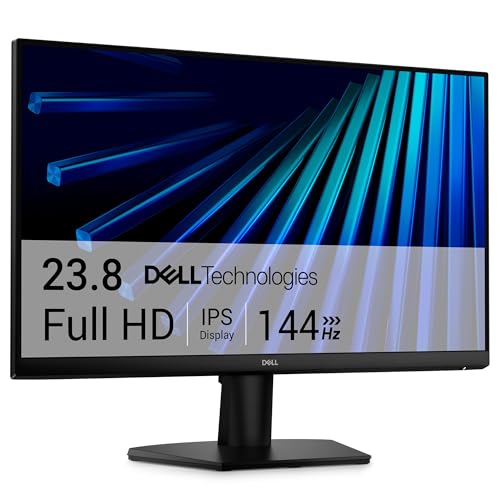
| 1 Dell S2425HSM 24-Inch 144Hz Monitor | Dell | 7.55 × 21.17 × 13.66 in | 11 lb | 144Hz refresh rate with AMD FreeSync | Check price |
| 2 Dell S2725QS 27-Inch 4K Monitor | Dell | 7.89 × 24.08 × 15.3 in | 14 lb | 4K UHD IPS display | Check price |
| 3 INNOCN 27C1U-D 27-Inch 4K Monitor | INNOCN | 2.6 × 24 × 14 in | Not listed | 4K resolution on a 27-inch IPS panel | Check price |
| 4 Dell SE2726H 27-Inch 144Hz Monitor | Dell | 7.87 × 24.06 × 17.86 in | 9.8 lb | 144Hz refresh rate | Check price |
| 5 Dell S2725HSM 27-Inch 144Hz Monitor | Dell | 7.95 × 24 × 15.32 in | 13 lb | 144Hz refresh rate with AMD FreeSync | Check price |
| 6 BenQ MA270U 27-Inch 4K Monitor | BenQ | 24 × 22 × 8.6 in | Not listed | 27-inch 4K resolution | Check price |
| 7 Philips 241V8LB 24-Inch 100Hz Monitor | Philips Computer Monitors | 8.7 × 21.3 × 16.4 in | 6.4 lb | 100Hz refresh rate | Check price |
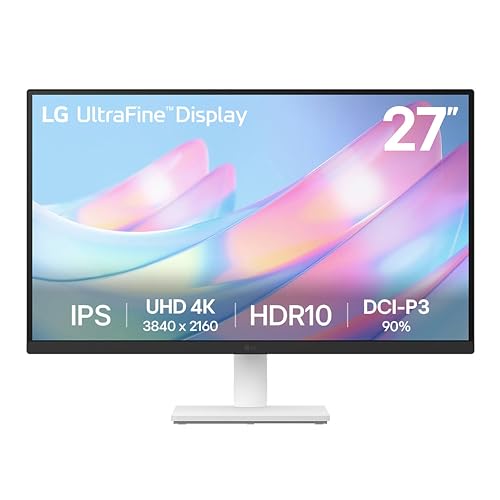
| 8 LG 27US500-W 27-Inch 4K Monitor | LG | 8.46 × 24.15 × 17.87 in | 12 lb | 27-inch 4K UHD resolution | Check price |
Sizes and weights as listed by the manufacturer on Amazon. Check the retailer for current price and availability.
Pros
- 144Hz refresh rate with AMD FreeSync
- Height, tilt, pivot, and swivel adjustment
- Integrated dual 3W speakers
Cons
- Who should skip it: buyers who need higher than FHD resolution
Pros
- 4K UHD IPS display
- Up to 120Hz with FreeSync Premium
- Height-adjustable, swivel-and-pivot stand
- 99% sRGB color coverage
Cons
- Who should skip it: users who need refresh rates above 120Hz
Pros
- 4K resolution on a 27-inch IPS panel
- USB-C, DisplayPort, and HDMI inputs
- Height-adjustable, pivot-capable stand
- VESA 75 x 75 mounting support
Cons
- Who should skip it: gamers needing refresh rates above 60Hz
Pros
- 144Hz refresh rate
- IPS panel with wide viewing angles
- AMD FreeSync support
- TÜV Rheinland 3-Star eye comfort certification
Cons
- Full HD resolution on a 27-inch screen
- Who should skip it: users wanting higher-than-Full-HD resolution

Pros
- 144Hz refresh rate with AMD FreeSync
- Height, tilt, pivot, and swivel adjustments
- Integrated dual 3W speakers
Cons
- Who should skip it: users who need higher-than-Full-HD detail
Best for Mac-focused controls

Pros
- 27-inch 4K resolution
- Two USB-C ports
- Up to 90W MacBook power delivery
- Height, tilt, swivel, and pivot adjustments
Cons
- Who should skip it: buyers needing a stated refresh rate

Pros
- 100Hz refresh rate
- EasyRead mode for documents
- 178-degree viewing angles
Cons
- Who should skip it: users who need resolution above Full HD
Pros
- 27-inch 4K UHD resolution
- IPS panel with wide viewing angles
- HDR10 and stated DCI-P3 coverage
- Onscreen Control workspace options
Cons
- Who should skip it: users needing more than tilt adjustment from the stand
Best USB-C Monitor for MacBook Air: Dell S2725QC 27-Inch 4K Monitor
Dell S2725QC 27-Inch 4K Monitor pairs a 27-inch 4K IPS panel with USB-C power delivery up to 65W, making it a strong fit if you want a single-cable desk connection. Its 120Hz refresh rate and 99% sRGB coverage are useful extras for smooth motion and general color-focused work. The trade-off is that the LG 27UP850K-W lists higher USB-C delivery at 90W. Skip it if you need the highest charging wattage or more than 65W from the monitor.
Best Higher-Wattage USB-C Monitor: LG 27UP850K-W 27-Inch 4K Monitor
LG 27UP850K-W 27-Inch 4K Monitor lists USB-C power delivery up to 90W, plus a 4K IPS display and 95% DCI-P3 color gamut. Its stand supports height, tilt, and pivot adjustment, and the monitor also has DisplayPort, two HDMI ports, and two USB 3.0 ports. It is a 60Hz display, unlike the Dell S2725QC’s 120Hz. Skip it if a refresh rate above 60Hz is a priority.
Related guides: Best Ultrawide Monitors for GTA 6, Best Monitors for Architects and Best Monitors for a Mac Mini.
Best Mac Color Controls: BenQ MA270U 27-Inch 4K Monitor
BenQ MA270U 27-Inch 4K Monitor is designed for MacBook use, with Mac color tuning, keyboard brightness and volume controls, and two USB-C ports. The product page lists 90W delivery for a MacBook and 15W charging for an iPad or iPhone, plus height, tilt, swivel, and pivot adjustment. The product data does not specify its refresh rate, so check the current listing if that matters to your work or games. Skip it if you want a lower-cost display or need a stated high refresh rate.
Key Numbers at a Glance
- USB-C power delivery reaches 65W on the Dell S2725QC and 90W on the LG 27UP850K-W.
- The Dell S2725QC and Dell S2725QS list 120Hz refresh rates; the LG 27UP850K-W lists 60Hz.
- The BenQ MA270U lists two USB-C ports, while the Dell S2725QC lists one USB-C connection.
- Among the listed 4K models, screen size is 27 inches for the Dell S2725QC, LG 27UP850K-W, and BenQ MA270U.
How to Choose a Monitor for a MacBook Air
Resolution and screen size
Bottom line: Choose 4K at 27 inches when fine detail and extra desktop space matter more than minimizing cost or prioritizing a fast refresh rate. Several options, including the Dell S2725QS, INNOCN 27C1U-D, and LG 27US500-W, list 3840 × 2160 resolution at 27 inches. The 24-inch Philips 241V8LB and Dell S2425HSM are Full HD, which can suit basic office tasks but offers fewer pixels for detailed work. Consider your viewing distance and the text size you prefer, and check macOS display scaling before buying.
USB-C connection and power delivery
Bottom line: For charging through the monitor, choose a model with an explicitly stated USB-C power-delivery rating. The Dell S2725QC specifies up to 65W, while the LG 27UP850K-W and BenQ MA270U specify up to 90W. USB-C ports do not all offer the same charging or display features, so confirm the exact port capability and compare the wattage with your MacBook Air’s needs. If you use HDMI or DisplayPort instead, check whether your MacBook Air and any adapter support the connection you plan to use.
Refresh rate, motion, and gaming
Bottom line: A higher refresh rate is useful for smoother motion, but it is not the main reason to choose a work monitor. The Dell S2725QC and S2725QS list 120Hz, while the Dell S2425HSM and SE2726H list 144Hz; the LG 27UP850K-W lists 60Hz. Actual refresh-rate support depends on the MacBook, connection, resolution, and content, so verify the combination rather than assuming every listed rate works through every cable. For a dedicated gaming comparison, see our best 240Hz gaming monitors guide.
Color and HDR claims
Bottom line: Match color coverage to your work, and treat HDR labels as one specification rather than a guarantee of a particular viewing experience. The Dell S2725QC and S2725QS list 99% sRGB, while the LG 27UP850K-W lists 95% DCI-P3. The INNOCN 27C1U-D lists HDR400 and Delta E below 2, and the LG 27US500-W lists HDR10 and 90% DCI-P3. If you edit color-sensitive images, compare the gamut and calibration details you need; for video, also check which HDR formats your workflow supports. For background on the certification, see VESA DisplayHDR information.
Stand adjustment, ports, and desk fit
Bottom line: Check the stand and connection list before choosing, especially if you need portrait orientation or plan to connect other devices. The Dell S2725QS and LG 27UP850K-W list height, pivot, and swivel adjustment; the BenQ MA270U lists height, tilt, swivel, and pivot. By contrast, the LG 27US500-W lists tilt adjustment, and the Philips 241V8LB lists tilt adjustment. Count the HDMI, DisplayPort, and USB ports you will actually use, then compare the monitor’s stand and mounting details with your desk setup. Browse more choices on our monitors category page.
How We Compared These Products
This guide is based on product research, not firsthand evaluation. We compared listed resolution, panel type, refresh rate, color coverage, HDR claims, connections, USB-C power delivery, and stand adjustments, and did not treat ratings as proof of performance. Product pages do not state every MacBook compatibility detail, so check the exact MacBook Air model, cable, resolution, and refresh rate before ordering.
Which Option Fits Your MacBook Air and Desk?
For a one-cable desk with a 4K, 120Hz screen: Dell S2725QC 27-Inch 4K Monitor combines USB-C power delivery up to 65W with 4K resolution and a 120Hz refresh rate. Skip it if your charging needs exceed 65W.
For more USB-C charging headroom and flexible ports: LG 27UP850K-W 27-Inch 4K Monitor lists 90W USB-C delivery, two HDMI ports, DisplayPort, and a stand with height and pivot adjustment. Skip it if you specifically want a refresh rate above its listed 60Hz.
For Mac-focused controls: BenQ MA270U 27-Inch 4K Monitor offers Mac color tuning, keyboard brightness and volume controls, and 90W USB-C delivery. Skip it if you need a specified refresh rate before choosing, because the product data does not state one.
Mistakes to Avoid When Choosing a MacBook Air Monitor
- Assuming every USB-C port does everything. Confirm that the specific port supports video and note its power-delivery rating.
- Choosing by resolution alone. Compare size, refresh rate, stand adjustment, and ports as well as pixel count.
- Expecting HDR labels to describe the whole picture. Check the stated HDR format, brightness information, and color coverage against your needs.
- Overlooking the connection path. Confirm the MacBook Air’s available outputs and whether your cable or adapter supports the resolution and refresh rate you want.
Frequently Asked Questions
Can I connect a MacBook Air to a USB-C monitor?
Yes, if the MacBook Air and monitor support video over their USB-C connection. Check the specific MacBook model, monitor port capabilities, and cable; USB-C alone does not establish supported display resolution, refresh rate, or charging wattage.
Will a monitor charge my MacBook Air?
Only if the monitor’s USB-C port supports power delivery. The Dell S2725QC lists up to 65W, while the LG 27UP850K-W and BenQ MA270U list up to 90W. Compare that figure with your MacBook Air’s charging requirements.
Is 4K worth it on a 27-inch monitor?
It can suit you if you want detailed images and a high-resolution workspace. The listed 27-inch 4K models include the Dell S2725QC, Dell S2725QS, and LG 27UP850K-W. Consider text scaling and your viewing distance, since higher resolution does not automatically mean the default text size will suit you.
Should I choose a 120Hz monitor over a 60Hz monitor?
Choose a higher refresh rate if smoother motion is important and your MacBook Air and connection can drive it at the resolution you use. The Dell S2725QC lists 120Hz, while the LG 27UP850K-W lists 60Hz and offers 90W USB-C power delivery. For office tasks, weigh refresh rate against charging, color, and stand features.
Can I use a monitor with HDMI instead of USB-C?
HDMI is an option when the MacBook Air can connect through a compatible output or adapter. The Dell S2425HSM lists HDMI connectivity, and several 4K models include HDMI alongside other ports. Confirm the adapter and cable support the display mode you want; an HDMI connection does not itself provide USB-C charging.
Which monitor is easiest to adjust for portrait use?
The Dell S2725QS, LG 27UP850K-W, and BenQ MA270U list pivot adjustment, which can help position a screen vertically. The LG 27US500-W lists tilt adjustment instead. Check the stand specifications for the exact model you choose.


Write Your Review
No reviews yet. Be the first to share your experience!