


For competitive games, a compact 1080p 240Hz screen can keep the pixel load more manageable, while players who want sharper detail can consider the 27-inch QHD OLED from LG. The best 240Hz gaming monitors for your setup depend on whether your graphics card can deliver high frame rates at your chosen resolution, how much desk space you have, and which ports your PC supports.
Compare at a glance
| Product | Brand | Size | Weight | Stands out for | Price |
|---|---|---|---|---|---|
| 1 Sceptre C345B-QU240T 34-Inch 240Hz Monitor | Sceptre | 8.5 × 31.8 × 18 in | 14 lb | 34-inch, 3440 x 1440 curved display | Check price |
| 2 SANSUI 32-Inch Curved 240Hz Monitor | SANSUI | 24.19 × 8.06 × 17.75 in | 9.7 lb | 240Hz refresh rate | Check price |
| 3 Dell SE2726HG 27-inch 240Hz Monitor | Dell | 7.4 × 24.05 × 17.83 in | 8.2 lb | 240Hz refresh rate | Check price |
| 4 LG 27GX704A-B 27-inch QHD OLED Monitor | LG | 8.7 × 23.8 × 21 in | 16 lb | 27-inch QHD OLED display | Check price |
| 5 Dell SE2426HG 24-Inch 240Hz Gaming Monitor | Dell | 7.04 × 21.21 × 16.23 in | 7.4 lb | 240Hz refresh rate | Check price |
| 6 ASUS TUF VG259QM5A 25-Inch 240Hz Monitor | ASUS | 6.9 × 22 × 15.8 in | 7.5 lb | 240Hz refresh rate | Check price |
| 7 ASUS TUF VG279QM5A 27-Inch 240Hz Monitor | ASUS | 7.6 × 24.21 × 17.83 in | 9.9 lb | 240Hz refresh rate | Check price |
Sizes and weights as listed by the manufacturer on Amazon. Check the retailer for current price and availability.
Best for wide-format gaming and workspace
Pros
- 34-inch, 3440 x 1440 curved display
- Refresh rate up to 240Hz
- Two HDMI and two DisplayPort inputs
- Built-in speakers
Cons
- Adaptive sync support is not specified
- Who should skip it: buyers requiring confirmed adaptive sync support
Pros
- 240Hz refresh rate
- FreeSync support
- HDMI and DisplayPort inputs
- VESA mounting compatibility
Cons
- No built-in speakers
- Who should skip it: buyers needing built-in speakers
Pros
- 240Hz refresh rate
- IPS panel with 99% sRGB coverage
- FreeSync Premium and HDMI VRR
- Two HDMI ports and DisplayPort 1.4
Cons
- 1080p resolution on a 27-inch display
- Stand adjustment is limited to tilt
- Who should skip it: buyers seeking higher resolution
Best for QHD gaming in a 27-inch format

Pros
- 27-inch QHD OLED display
- 240Hz refresh rate
- G-SYNC Compatible and FreeSync Premium Pro
- Height, tilt, swivel, and pivot adjustments
Cons
- Who should skip it: buyers seeking 4K resolution
Best for a compact Full HD setup
Pros
- 240Hz refresh rate
- IPS panel with 99% sRGB coverage
- FreeSync Premium and HDMI VRR
- Two HDMI ports plus DisplayPort 1.4
Cons
- Who should skip it: buyers needing height or swivel adjustment

Pros
- 240Hz refresh rate
- Fast IPS panel
- FreeSync Premium and G-SYNC compatible
- Three-year manufacturer warranty
Cons
- Who should skip it: users wanting higher-resolution gaming
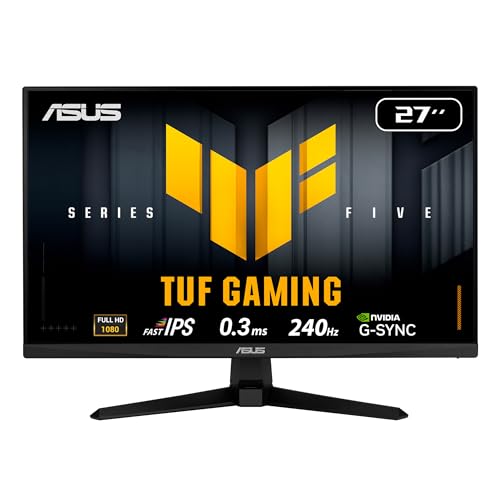
Pros
- 240Hz refresh rate
- Fast IPS panel
- FreeSync Premium and G-SYNC compatible
- 99% sRGB coverage
Cons
- Who should skip it: users seeking higher than 1080p resolution
Best for Wide-Screen Gaming: Sceptre C345B-QU240T 34-Inch 240Hz Monitor
The Sceptre C345B-QU240T 34-Inch 240Hz Monitor pairs a 34-inch curved display with 3440 x 1440 resolution and up to 240Hz, making it the wide-format choice in this group. Its 1500R curve, 100% sRGB claim, and two HDMI plus two DisplayPort inputs are listed features. The wider, higher-resolution image asks more of your graphics card than a 1080p screen, and confirm that your chosen input supports your desired refresh rate. Skip it if you want a conventional 16:9 screen or prioritize a compact desk footprint.
Best for QHD Detail: LG 27GX704A-B 27-inch QHD OLED Monitor
The LG 27GX704A-B 27-inch QHD OLED Monitor combines 2560 x 1440 resolution, a 240Hz refresh rate, and an OLED panel. The listing also specifies a 0.03ms response time, HDMI 2.1, DisplayPort 1.4, and compatibility with NVIDIA G-SYNC and AMD FreeSync Premium Pro. Its QHD resolution requires more graphics processing than 1080p, and the product page does not state burn-in coverage, so check warranty terms before purchase. Skip it if your priority is a lower-cost 1080p screen.
Related guides: Best Monitors for GTA 6 on Xbox Series X, Best Monitors for GTA 6 on PS5 Pro and Best Monitors for GTA 6 on PS5.
Best for Compact 1080p Play: Dell SE2426HG 24-Inch 240Hz Gaming Monitor
The Dell SE2426HG 24-Inch 240Hz Gaming Monitor offers a 23.8-inch Full HD IPS display, a 240Hz refresh rate, and FreeSync Premium. Its two HDMI ports and DisplayPort 1.4 give you several listed connection choices, while its 99% sRGB coverage may suit general desktop use as well as gaming. The smaller screen provides less room for detail than the 27-inch and 34-inch alternatives. Skip it if you specifically want QHD resolution or a larger curved display.
Key Numbers at a Glance
- Resolution ranges from 1920 x 1080 on the Dell SE2426HG 24-Inch 240Hz Gaming Monitor to 3440 x 1440 on the Sceptre C345B-QU240T 34-Inch 240Hz Monitor.
- Screen sizes range from 23.8 inches on the Acer Nitro 23.8in FHD 1920×1080 IPS 240Hz to 34 inches on the Sceptre C345B-QU240T 34-Inch 240Hz Monitor.
- Listed response-time figures include 0.03ms for the LG 27GX704A-B 27-inch QHD OLED Monitor and 0.5ms for the Dell SE2426HG 24-Inch 240Hz Gaming Monitor; manufacturers may use different measurement methods.
- The SANSUI 32-Inch Curved 240Hz Monitor is 1920 x 1080, while the ASUS TUF VG279QM5A 27-Inch 240Hz Monitor is also Full HD, at 27 inches rather than 32 inches.
How to Choose a 240Hz Gaming Monitor
Resolution, Screen Size, and Graphics Card
Bottom line: Match resolution to the detail you want and the frame rates your graphics card can sustain. The Dell SE2426HG is 23.8 inches at 1920 x 1080, while the LG 27GX704A-B is 27 inches at 2560 x 1440. The Sceptre C345B-QU240T stretches to 3440 x 1440 across 34 inches, which gives you a much wider image but raises the graphics workload compared with Full HD. A 240Hz maximum does not mean a PC will produce 240 frames per second in every game. Check the graphics card and the games you play before paying for a resolution and refresh rate your PC cannot use to advantage.
Panel Type and Response-Time Claims
Bottom line: Choose the panel and motion features that fit your priorities, not the smallest response-time number alone. The Dell SE2426HG uses IPS, the Sceptre C275B-FWT240 uses VA, and the LG 27GX704A-B uses OLED. Listings report figures as low as 0.03ms for the LG and 0.3ms minimum for the ASUS TUF VG279QM5A 27-Inch 240Hz Monitor, but these figures are not directly comparable unless measurement methods match. IPS is listed on several models, while the SANSUI SANSUI 32-Inch Curved 240Hz Monitor listing specifies a 1ms MPRT figure. Look for a consistent motion measure and panel information in the product details when comparing claims.
Adaptive Sync and Variable Refresh Rate
Bottom line: Check that the monitor’s sync features suit your graphics card and connection. FreeSync Premium appears on the Dell SE2426HG and Acer Nitro KG240Y W3biip, while the ASUS TUF VG259QM5A 25-Inch 240Hz Monitor lists both FreeSync Premium and G-SYNC compatibility. The LG 27GX704A-B lists G-SYNC compatibility and FreeSync Premium Pro. These features are intended to coordinate display refresh with changing frame output, but support can depend on the GPU, connection, and settings. Verify your graphics card and monitor documentation, especially if variable refresh rate is a priority.
Ports and Refresh-Rate Support
Bottom line: Confirm the port and cable path can deliver the resolution and refresh rate you want. The Dell SE2426HG lists two HDMI ports and DisplayPort 1.4; the LG lists dual HDMI 2.1 and DisplayPort 1.4. Sceptre’s 24.5-inch E255B-FWD240 lists two HDMI and two DisplayPort inputs, and says those connections support up to 240Hz. Port counts and versions differ, so check the monitor’s full input specifications and your computer’s output before connecting a gaming PC or console. For more options across screen types, browse our monitor category.
Desk Space, Curvature, and Mounting
Bottom line: Measure your desk and viewing position before choosing a large or curved screen. These choices range from 23.8-inch flat displays to a 34-inch 1500R curved Sceptre and a 32-inch 1500R curved SANSUI. The SANSUI lists tilt adjustment and 100 x 100mm VESA compatibility, but stand and mount details vary across models. Check each monitor’s dimensions and adjustment details in its product information, and verify that a VESA arm matches the listed mounting pattern. The gaming monitor category offers a broader way to compare this display type.
How We Compared These Products
This guide is based on product research, comparing the listed resolution, screen size, panel type, refresh rate, response-time claims, adaptive-sync features, and connections. Customer feedback was not available in the product data, and no firsthand evaluation is documented here. Manufacturer claims are presented as listed specifications, not as independently confirmed performance results.
Which Option Fits Your Setup?
For wide-format gaming and workspace: Sceptre C345B-QU240T 34-Inch 240Hz Monitor pairs a 34-inch, 3440 x 1440 screen with a 1500R curve and up to 240Hz. Skip it if you have limited desk width or want to keep the graphics workload closer to 1080p.
For QHD gaming in a 27-inch format: LG 27GX704A-B 27-inch QHD OLED Monitor lists 2560 x 1440 resolution, a 240Hz refresh rate, and OLED contrast features. Skip it if you would rather prioritize a Full HD screen or if you have not confirmed the warranty terms that matter to you.
For a compact Full HD setup: Dell SE2426HG 24-Inch 240Hz Gaming Monitor combines a 23.8-inch IPS panel, 240Hz, and FreeSync Premium. Skip it if you want a larger display or more than 1920 x 1080 resolution. If you are choosing a computer to pair with a display, our best laptops under $300 guide covers screen and memory considerations, though its budget focus may not match a high-refresh gaming setup.
Mistakes to Avoid When Choosing a 240Hz Gaming Monitor
- Focusing on refresh rate alone. Check your GPU and the resolution you plan to use; a 240Hz rating does not guarantee a game will run at 240 frames per second.
- Comparing response-time figures as if they were identical. Look for the measurement type, such as MPRT or GtG, and avoid treating different methods as a direct ranking.
- Ignoring the port connection. Confirm your PC’s output and the monitor’s input can deliver your intended resolution and refresh rate.
- Choosing by screen size without measuring. Compare the monitor’s actual dimensions with your desk and viewing position, especially for 32-inch and 34-inch curved models.
Frequently Asked Questions
Can my graphics card take advantage of a 240Hz monitor?
A 240Hz monitor can display up to 240 refreshes per second, but the game and graphics card determine the frame rate your PC actually produces. Higher resolutions such as 2560 x 1440 or 3440 x 1440 generally require more graphics work than 1920 x 1080. Check performance for your specific games and GPU before deciding.
Is 1080p or 1440p a better choice for 240Hz gaming?
Choose Full HD if you prefer the lower resolution and a compact screen, such as the 23.8-inch Dell SE2426HG. Choose QHD for more image detail if your PC can support it, as on the 27-inch LG or 34-inch Sceptre. The wider Sceptre uses 3440 x 1440, so check game and GPU suitability rather than assuming all QHD displays have the same pixel load.
Does 240Hz work over HDMI?
Some listings specify high refresh rates over HDMI, including the Sceptre E255B-FWD240, which says its HDMI and DisplayPort connections support up to 240Hz. The Dell SE2426HG lists two HDMI ports and DisplayPort 1.4, but its product data does not specify the maximum refresh rate for each input. Check the exact monitor input specification, graphics output, and cable when choosing your connection.
Is a curved 240Hz monitor right for a small desk?
A curved screen can be a fit if you want a more enveloping display, but screen width still matters. The Sceptre C345B-QU240T is 34 inches, while the SANSUI is 32 inches; both list 1500R curvature. Measure available desk space and check the product dimensions before choosing either.
Should I choose OLED for gaming?
The LG 27GX704A-B is the OLED choice here, with QHD resolution, 240Hz, and a listed 0.03ms response-time claim. The other listed models include IPS or VA options, depending on the model. Consider the panel trade-offs and confirm warranty coverage, including any terms relevant to OLED, before buying.


Write Your Review
No reviews yet. Be the first to share your experience!