


If you connect a Chromebook to monitors, wired Ethernet, and desk peripherals, the wrong dock can leave you with unsupported displays or no host charging. The best docking station for Chromebook users depends on the laptop’s USB-C capabilities: the Anker models offer ChromeOS compatibility with DisplayPort Alt Mode, while Plugable lists ChromeOS support for its USB docks.
Compare at a glance
| Product | Brand | Size | Weight | Stands out for | Price |
|---|---|---|---|---|---|
| 1 Acer 9-in-1 USB-C Docking Station | Acer | Not listed | Not listed | Two HDMI display outputs | Check price |
| 2 Anker Prime 14-in-1 Docking Station | Anker | 5.51 × 3.82 × 1.85 in | 2.8 lb | 14-in-1 connectivity | Check price |
| 3 MOKiN 14-in-1 Laptop Docking Station | MOKiN | Not listed | Not listed | Four HDMI and DisplayPort outputs | Check price |
| 4 HODO 8-in-1 USB-C Docking Station | HODO | Not listed | 0.3 lb | Four types of video output | Check price |
| 5 Anker 8-in-1 USB-C Docking Station | Anker | 4.65 × 2.01 × 0.69 in | 0.2 lb | Dual HDMI display outputs | Check price |
| 6 Anker Nano 13-in-1 Laptop Dock | Anker | 3.74 × 1.57 × 5.51 in | Not listed | Detachable hub supports desk and travel use | Check price |
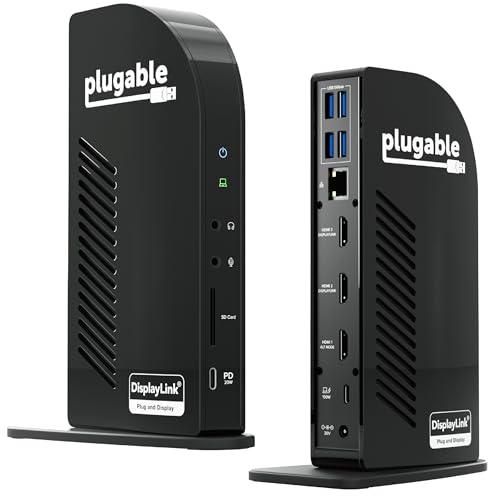
| 7 Plugable UD-3900 Dual HDMI Dock | Plugable | 6.45 × 3.22 × 4.02 in | 0.8 lb | Dual HDMI display outputs | Check price |
| 8 Plugable UD-ULTCDL 13-in-1 Dock | Plugable | 4.7 × 2.6 × 6.9 in | 0.9 lb | Three HDMI display outputs | Check price |
| 9 MOKiN 8-in-1 USB-C Docking Station | MOKiN | Not listed | 0.2 lb | Multiple display output options | Check price |
Sizes and weights as listed by the manufacturer on Amazon. Check the retailer for current price and availability.
Pros
- Two HDMI display outputs
- Four 5Gbps USB ports
- SD and MicroSD card slots
- Up to 90W laptop charging
Cons
- Who should skip it: Mac users needing independent external displays
- Laptop USB-C port must support video output
Pros
- 14-in-1 connectivity
- Up to 160W total output
- Dual HDMI display connections
- Data speeds up to 10Gbps
Cons
- Linux is not supported
- macOS mirrors the same image on both external displays
- Who should skip it: Linux users or macOS users needing separate external displays
Pros
- Four HDMI and DisplayPort outputs
- Gigabit Ethernet and SD/microSD readers
- Up to 100W USB-C Power Delivery
Cons
- Power adapter not included
- Who should skip it: Mac users needing independent external displays

Pros
- Four types of video output
- Up to 100W USB-C power input
- Three USB 2.0 ports
Cons
- VGA connection limits displays to 1080p
- macOS external displays mirror one another
- Who should skip it: owners of laptops without USB-C DisplayPort Alternate Mode

Pros
- Dual HDMI display outputs
- Ethernet and two USB-A ports
- SD and microSD card readers
Cons
- 100W PD wall charger and USB-C cable required, not included
- Who should skip it: Linux users

Pros
- Detachable hub supports desk and travel use
- Three display outputs
- Includes 140W power adapter
- Gigabit Ethernet and card-reader slots
Cons
- macOS mirrors multiple external displays
- Who should skip it: users who need the dock to operate without a connected laptop

Pros
- Dual HDMI display outputs
- Six USB ports
- Gigabit Ethernet and audio jacks
- Windows, macOS, and ChromeOS support
Cons
- Does not charge the host laptop
- Requires a DisplayLink driver on macOS
- Who should skip it: users who need 4K, gaming, or protected streaming
Pros
- Three HDMI display outputs
- Up to 100W laptop charging
- Gigabit Ethernet and SD reader
- Windows, macOS, and ChromeOS compatibility
Cons
- DisplayLink drivers required for HDMI 2 and 3 on Mac
- Who should skip it: users needing HDCP-protected streaming

Pros
- Multiple display output options
- Up to 100W PD charging
- Includes two USB-A ports
Cons
- MacBook connections support mirror mode only
- USB ports are limited to USB 2.0 speeds
- Who should skip it: Mac users needing extended displays
Best for Dual 4K Displays: Anker Prime 14-in-1 Docking Station
Anker Prime 14-in-1 Docking Station stands out for a Chromebook desk setup needing many connections: it has 14-in-1 connectivity, dual HDMI, Ethernet, audio, and ports with data speeds up to 10Gbps. The listing supports ChromeOS and says dual HDMI output can reach 2K at 60Hz with a DP 1.4 laptop or 1080p at 60Hz with DP 1.2, rather than promising dual 4K output. Skip it if you need Linux compatibility, independent extended displays on macOS, or a dock that supports a 5120×1440 monitor.
Best for an Affordable Dual-Display Hub: Anker 8-in-1 USB-C Docking Station
Anker 8-in-1 USB-C Docking Station combines two HDMI ports, Ethernet, SD and microSD readers, two USB-A data ports, and up to 85W pass-through charging. It supports ChromeOS on laptops with DP Alt Mode and Power Delivery; two connected HDMI displays are listed at up to 4K at 30Hz. Skip it if your Chromebook lacks video-capable USB-C or you need Linux support.
Best for Straightforward Dual HD Displays: Plugable UD-3900 Dual HDMI Dock
Plugable UD-3900 Dual HDMI Dock is a fit for productivity setups with two HDMI displays, Gigabit Ethernet, audio jacks, and six USB ports. ChromeOS 100 or later works without additional setup according to the listing, but display output tops out at 1920×1200 at 60Hz for dual displays, and the dock does not charge the Chromebook. Skip it if you need 4K video, gaming support, protected streaming content, or host charging.
Best for Three HDMI Screens: Plugable UD-ULTCDL 13-in-1 Dock
Plugable UD-ULTCDL 13-in-1 Dock supports ChromeOS and has three HDMI outputs, Gigabit Ethernet, four USB-A ports, an SD reader, and up to 100W laptop charging. Its listed display limits are up to 4K at 30Hz on HDMI 1 and 1920×1200 at 60Hz on HDMI 2 and 3; the product page does not specify ChromeOS-specific display behavior beyond compatibility. Skip it if your Chromebook cannot use the required USB-C, USB4, or Thunderbolt connection, or if protected streaming playback is important.
Key Numbers at a Glance
- Host charging reaches 160W total output on the Anker Prime 14-in-1 Docking Station, while the Anker 8-in-1 USB-C Docking Station supports up to 85W pass-through charging.
- The Plugable UD-3900 Dual HDMI Dock has six USB ports: two USB 3.0 and four USB 2.0.
- The Plugable UD-ULTCDL 13-in-1 Dock has three HDMI outputs, with listed maximums of 4K at 30Hz on HDMI 1 and 1920×1200 at 60Hz on HDMI 2 and 3.
- Dual HDMI output on the Anker 8-in-1 USB-C Docking Station is listed up to 4K at 30Hz per display.
How to Choose the Best Docking Station for Chromebook
Confirm USB-C video and charging support
Bottom line: Check your Chromebook’s exact port capabilities before choosing a dock. USB-C describes the connector, not a guarantee of video output or Power Delivery. Anker specifies that its 8-in-1 dock needs DP Alt Mode and Power Delivery, and the Prime dock also requires a compatible video-capable connection; check your Chromebook’s specifications for those features and supported display count.
If your Chromebook has USB-A but lacks compatible USB-C video, these USB-C display docks are not a safe assumption. The Plugable UD-3900 uses a USB 3.0 or USB-C host connection and lists ChromeOS support, but check the manufacturer’s compatibility guidance for your specific Chromebook before buying.
Match display resolution and refresh rate to your setup
Bottom line: Choose a dock by the resolution and refresh rate you need on every screen. The Anker 8-in-1 lists one display at 4K at 60Hz or two at 4K at 30Hz. The Plugable UD-3900 is limited to dual displays up to 1920×1200 at 60Hz, while the Plugable UD-ULTCDL gives its HDMI outputs different resolution limits.
These distinctions matter for text-heavy work, video playback, and moving windows between screens. Also confirm your Chromebook’s own display-output limits, monitor inputs, and cable support; a dock cannot exceed the capabilities of the host system.
Size up charging needs and included power
Bottom line: Compare host charging wattage with your Chromebook’s adapter requirements, and check whether a power supply is included. The Anker 8-in-1 supports up to 85W pass-through but requires a 100W PD wall charger and USB-C cable. The Plugable UD-ULTCDL lists up to 100W laptop charging and includes a power adapter, while the Plugable UD-3900 does not charge the host computer.
Charging wattage for the dock is not the same as charging output to the Chromebook. The Anker Prime’s 160W figure is total output, with charging shared among connected devices; check the product’s individual charging details and your Chromebook’s power requirement.
Choose ports for the devices you actually connect
Bottom line: Count the ports your desk needs, including their data speed and type. Anker’s Prime dock lists 14-in-1 connectivity and data speeds up to 10Gbps. The Anker 8-in-1 adds Ethernet and SD and microSD readers, while the Plugable UD-3900 pairs Gigabit Ethernet and audio jacks with USB 3.0 and USB 2.0 ports.
A larger port count does not automatically make a dock a better fit: confirm that it has the right HDMI, USB, card-reader, and network connections for your accessories. For other laptop platforms, see our guides to best docking stations for Windows laptops and best docking stations for MacBook.
Consider software needs and content restrictions
Bottom line: Prefer a connection and setup path that matches your Chromebook and your everyday apps. The Plugable UD-3900 lists ChromeOS 100 or later without additional setup, while its Windows and macOS support has different driver notes. The Plugable UD-ULTCDL lists ChromeOS compatibility but also says it does not support HDCP-protected playback such as Netflix or Hulu.
Before ordering, verify the dock’s instructions for your ChromeOS version and the displays you plan to connect. If your routine depends on protected streaming, check that restriction carefully rather than assuming every video output supports it.
How We Compared These Products
This guide is based on product research, not firsthand evaluation. We compared the listed port layouts, charging claims, display limits, operating-system compatibility, setup notes, and customer feedback information available in the product data. Where a model’s Chromebook display behavior or exact device compatibility is not specified, we recommend checking the manufacturer’s compatibility details before purchase.
Which Option Fits Your Home and Devices?
For an office desk needing many ports and ChromeOS compatibility: the Anker Prime 14-in-1 Docking Station combines Ethernet, audio, 14-in-1 connectivity, and dual HDMI, with its actual display limits depending on the laptop’s DP version. Skip it if you need Linux support or a 5120×1440 monitor.
For a two-monitor setup focused on general productivity: the Plugable UD-3900 Dual HDMI Dock offers ChromeOS 100 or later support without additional setup, plus Gigabit Ethernet and six USB ports. Skip it if you need host charging, 4K output, gaming support, or protected streaming playback.
For three HDMI-connected screens and laptop charging: the Plugable UD-ULTCDL 13-in-1 Dock lists three HDMI outputs and up to 100W charging. Skip it if its HDCP playback restriction conflicts with your viewing needs or your Chromebook’s USB-C, USB4, or Thunderbolt connection does not meet its requirements.
Mistakes to Avoid When Choosing a Chromebook Dock
- Assuming every USB-C port supports video. Confirm DP Alt Mode or the Chromebook’s specified display capability before selecting an HDMI dock.
- Reading a maximum resolution as a multi-display guarantee. Compare the stated resolution and refresh rate for each screen, then check the Chromebook’s display limits.
- Confusing total dock output with host charging. Check the laptop-specific Power Delivery figure and whether a power adapter is included.
- Overlooking software and playback restrictions. Verify ChromeOS version guidance, driver requirements, and HDCP notes if protected streaming matters.
Frequently Asked Questions
Will any USB-C docking station work with a Chromebook?
No. The Chromebook’s USB-C port must support the video and charging features the dock uses, and the operating system must be compatible. Check the Chromebook model’s port specifications and the dock’s compatibility notes before ordering.
Can these docks extend two displays from a Chromebook?
The Anker Prime and Anker 8-in-1 list dual HDMI display support, and the Plugable UD-3900 supports two HDMI displays. The exact resolution and refresh rate depend on the dock and host; the Chromebook’s capabilities also need to support the intended setup.
Does the Plugable UD-3900 charge a Chromebook?
No. Its product information states that the dock does not charge the host laptop. Keep the Chromebook’s own charger connected if you choose this model.
Do I need to install a driver for the Plugable UD-3900 on ChromeOS?
The listing says ChromeOS 100 or later works without additional setup. Its driver instructions differ for Windows and macOS, so make sure your Chromebook meets the stated ChromeOS version requirement.
Can I use the Plugable UD-ULTCDL for Netflix or Hulu?
The product information says the UD-ULTCDL does not support HDCP-protected content, including Netflix and Hulu. Choose a different connection approach if protected streaming is a priority, and verify compatibility for your specific service and Chromebook.


Write Your Review
No reviews yet. Be the first to share your experience!