



For a MacBook owner adding monitors, the right dock depends first on the laptop chip and whether you need separate extended displays or mirrored screens. This guide to the best docking stations for MacBook compares monitor support, charging, ports, and device compatibility, so you can avoid buying a dock that does not fit your setup.
Compare at a glance
| Product | Brand | Size | Weight | Stands out for | Price |
|---|---|---|---|---|---|
| 1 MOKiN MacBook Docking Station, Dual HDMI | MOKiN | 4.84 × 1.85 × 0.65 in | 0.2 lb | Combines display, networking, USB, and card-reader connections | Check price |
| 2 WAVLINK DisplayLink Docking Station | WAVLINK | 8.78 × 3.58 × 1.14 in | 0.8 lb | Three external display outputs | Check price |
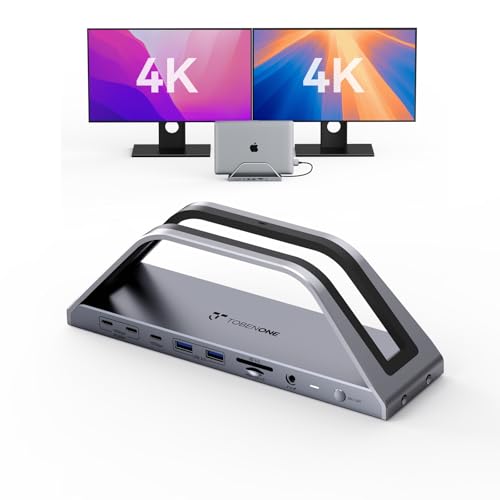
| 3 Tobenone 17-in-2 MacBook Docking Station | Tobenone | 9.09 × 3.15 × 2.56 in | Not listed | Dual 4K at 60Hz display support | Check price |
| 4 Anker Prime 14-in-1 Docking Station | Anker | 5.51 × 3.82 × 1.85 in | 2.8 lb | 14-in-1 connectivity | Check price |
| 5 LIONWEI 13-in-1 USB-C Docking Station | LIONWEI | 13 × 0.5 × 5 in | 0.3 lb | Dual HDMI and DisplayPort outputs | Check price |
| 6 Anker 8-in-1 USB-C Docking Station | Anker | 4.65 × 2.01 × 0.69 in | 0.2 lb | Dual HDMI display outputs | Check price |
| 7 Anker Nano 13-in-1 Laptop Dock | Anker | 3.74 × 1.57 × 5.51 in | Not listed | Detachable hub supports desk and travel use | Check price |
| 8 Tobenone MacBook Docking Station, Dual 4K | Tobenone | 9 × 2 × 3 in | Not listed | Dual 4K at 60Hz support | Check price |
Sizes and weights as listed by the manufacturer on Amazon. Check the retailer for current price and availability.
Pros
- Combines display, networking, USB, and card-reader connections
- Dual HDMI supports separate external monitors
- Compact aluminum housing
Cons
- Dual HDMI resolution is limited to 4K at 30Hz
- Who should skip it: MacBook owners without two USB-C ports on one side
Pros
- Three external display outputs
- 100W laptop power delivery
- Six 10Gbps USB ports
- Gigabit Ethernet
Cons
- Requires DisplayLink driver installation
- Not recommended for gaming or HDCP-protected 4K streaming
- Who should skip it: owners of USB-A-only laptops
Pros
- Dual 4K at 60Hz display support
- Up to 100W MacBook charging
- 2.5Gb Ethernet and SD/microSD readers
- Seven USB-C and USB-A ports
Cons
- Windows and Chrome OS are incompatible
- M1, M2, and M3 models support one extended monitor
- Who should skip it: MacBook owners using protective cases

Pros
- 14-in-1 connectivity
- Up to 160W total output
- Dual HDMI display connections
- Data speeds up to 10Gbps
Cons
- Linux is not supported
- macOS mirrors the same image on both external displays
- Who should skip it: Linux users or macOS users needing separate external displays

Pros
- Dual HDMI and DisplayPort outputs
- Eight USB-C and USB-A ports
- Gigabit Ethernet and audio/mic jack
Cons
- Who should skip it: Mac users needing multiple extended displays

Pros
- Dual HDMI display outputs
- Ethernet and two USB-A ports
- SD and microSD card readers
Cons
- 100W PD wall charger and USB-C cable required, not included
- Who should skip it: Linux users

Pros
- Detachable hub supports desk and travel use
- Three display outputs
- Includes 140W power adapter
- Gigabit Ethernet and card-reader slots
Cons
- macOS mirrors multiple external displays
- Who should skip it: users who need the dock to operate without a connected laptop

Pros
- Dual 4K at 60Hz support
- Includes a 100W charger
- Vertical stand saves desk space
- Gigabit Ethernet and card readers
Cons
- M1, M2, and M3 MacBooks support only one external display
- Compatible only with MacBook, not Windows, Linux, or ChromeOS
Best for Driver-Free Dual Displays: TobenONE 17-in-2 MacBook Docking Station
Tobenone 17-in-2 MacBook Docking Station suits MacBook users who want two HDMI displays listed at up to 4K at 60Hz and a large port selection, including seven USB ports and 2.5G Ethernet. It includes a 150W adapter and lists up to 100W laptop charging, but it is Mac-only, and some base M-series chips support only one extended monitor.
Skip it if you use Windows, Chrome OS, a Mac mini, or need two extended displays from a base M1, M2, or M3 MacBook.
Best for Three Displays with DisplayLink: WAVLINK DisplayLink Docking Station, Triple Display
WAVLINK DisplayLink Docking Station, Triple Display supports up to three external displays, with output listed as 4K at 60Hz plus two 2K at 60Hz. It also has six 10Gbps USB ports and 100W Power Delivery, but MacBook use requires the DisplayLink driver and USB-C video output.
Skip it if you do not want to install a display driver or need a dock recommended for HDCP-protected 4K streaming or gaming.
Best for a Compact MacBook Hub: MOKiN MacBook Docking Station, Dual HDMI
MOKiN MacBook Docking Station, Dual HDMI combines two HDMI ports with Ethernet, three USB 3.0 ports, SD and microSD readers, and 100W PD pass-through. The listing specifies up to 4K at 60Hz with one HDMI display, or up to 4K at 30Hz when both are used; its compatibility note also requires a MacBook with two USB-C ports on one side.
Skip it if your MacBook has only one USB-C port on a side or you need dual 4K at 60Hz.
Key Numbers at a Glance
- Single-display output is listed up to 4K at 60Hz for the MOKiN MacBook Docking Station, Dual HDMI; using both HDMI ports lowers its stated maximum to 4K at 30Hz.
- The WAVLINK DisplayLink Docking Station, Triple Display lists three external outputs at up to 4K plus 2K plus 2K, with each output specified at 60Hz.
- The Tobenone 17-in-2 MacBook Docking Station lists 2.5G Ethernet, while the MOKiN MacBook Docking Station, Dual HDMI lists Gigabit Ethernet.
- The Anker 8-in-1 USB-C Docking Station provides up to 85W pass-through charging; its charger is not included.
How to Choose a Docking Station for MacBook
Check Mac chip and extended-display support
Bottom line: Confirm your exact MacBook chip can extend to the number of displays you want. Base M1, M2, and M3 MacBooks have a one-external-display limit described in the TobenONE listings, while Pro and Max chip models support more displays depending on the MacBook model. The WAVLINK dock uses DisplayLink software to provide multi-display output, while the Tobenone 17-in-2 claims driver-free operation for its supported Mac models. Check Apple’s specifications for your exact laptop and verify whether you are comfortable installing DisplayLink.
Match resolution and refresh rate to the monitor setup
Bottom line: Read the resolution and refresh-rate limit for every display connected at once. The MOKiN adapter lists 4K at 60Hz for one HDMI display and 4K at 30Hz with two; the TobenONE 15-in-2 lists dual 4K at 30Hz, or one 4K at 60Hz plus 1080p at 60Hz through HDMI and VGA. If you need higher resolution and refresh rates on two screens, compare the exact Mac model, dock output combination, and monitor inputs before purchasing. The best USB-C hubs for MacBook guide can help if you need a simpler travel-oriented port expansion instead.
Compare charging wattage and power requirements
Bottom line: Choose a dock whose charging method and output suit your MacBook, and check whether its power adapter is included. The Tobenone 17-in-2 includes a 150W adapter and specifies up to 100W for the laptop; the Anker 8-in-1 supports up to 85W pass-through but requires a separate 100W PD wall charger and USB-C cable. The TobenONE 15-in-2 does not include a power adapter and specifies up to 85W output. Compare those details with your MacBook’s charging needs and your available desk outlets.
Count the ports you will use every day
Bottom line: Prioritize the ports your actual peripherals require, not the largest advertised port count. The Anker 8-in-1 includes Ethernet, SD and microSD readers, two USB-A ports, and two HDMI ports; the Tobenone 17-in-2 adds seven USB ports, a card reader, and 2.5G Ethernet. For photographers, SD access can matter more than extra display outputs; for a wired home-office connection, compare Ethernet speed and port availability. Browse docking stations or the broader PC accessories category if your needs extend beyond MacBook-specific docks.
Verify host connection and operating-system compatibility
Bottom line: USB-C shape alone does not confirm display, charging, or operating-system support. The MOKiN adapter has a specific MacBook port-layout requirement, while the LIONWEI dock supports extended mode for only one external monitor on macOS and describes triple-display extension for Windows. The Tobenone MacBook-specific models exclude Windows, and the Dell Pro WD25 is described as a universal USB-C dock with 100W charging and up to four displays, but the listing does not detail Mac-specific display behavior. Check the dock’s host requirements and your laptop’s supported display count before ordering.
How We Compared These Products
This guide is based on product research, comparing listed ports, display resolutions, charging specifications, compatibility notes, and stated design features. Product pages include customer ratings, but no customer comments were available in the product data for evaluating recurring ownership experiences. We did not conduct a firsthand evaluation.
Which Option Fits Your MacBook Setup?
If you want a driver-free Mac dock with two HDMI outputs and many peripherals attached, the Tobenone 17-in-2 is the more feature-rich fit, provided your MacBook chip supports the display arrangement you need. For a three-screen desk that can use DisplayLink, consider the WAVLINK, but account for its required driver and verify that your MacBook USB-C port supports video.
For a compact adapter with card readers and wired networking, the MOKiN offers a simpler mix of connections, with a port-layout and dual-display refresh-rate trade-off. MacBook owners comparing general accessories can also browse best MacBook Air accessories for related protection and connectivity options.
Mistakes to Avoid When Choosing a MacBook Dock
- Assuming two HDMI ports mean two extended Mac displays. Check your MacBook chip’s display limit and the dock’s macOS behavior.
- Ignoring the resolution drop with multiple monitors. Compare simultaneous-display specifications, since some docks lower refresh rate or resolution when more outputs are active.
- Overlooking the required power supply. Confirm whether a charger is included and whether pass-through power meets your laptop’s needs.
- Buying by port count alone. Match the dock to your host connection, card-reader needs, Ethernet speed, and the exact peripherals you plan to attach.
Frequently Asked Questions
Can a MacBook connect to two external monitors through a dock?
It depends on the MacBook chip and the dock. The TobenONE product information says base M1, M2, and M3 MacBooks support only one external display, while supported Pro and Max configurations allow more; DisplayLink docks use driver software for additional display capability.
Do MacBook docking stations need drivers?
Some do and some do not. The WAVLINK DisplayLink Docking Station, Triple Display requires its DisplayLink driver for MacBook use, while the Tobenone 17-in-2 and TobenONE 15-in-2 describe plug-and-play operation for supported MacBook models.
Will any USB-C dock charge a MacBook?
No. Check that the dock supports Power Delivery and confirm its stated output and power requirements. For example, the Anker 8-in-1 supports up to 85W pass-through, but its required wall charger is not included.
Can I use a Windows docking station with a MacBook?
Some cross-platform docks list MacBook compatibility, but display behavior can differ by operating system. The Anker Prime 14-in-1 says macOS mirrors the image across both external monitors, and the Dell WD25 listing does not specify Mac-specific display behavior, so verify those details for your use.
What should I check before buying a dual-monitor dock?
Confirm the MacBook model and chip, whether each monitor can show an independent desktop, and the resolution and refresh rate available with both displays connected. Also check the dock’s host-port requirements, charging output, included power supply, and the ports needed for your peripherals.


Write Your Review
No reviews yet. Be the first to share your experience!