


If you are upgrading a desktop for VR, the right graphics card depends on more than a “VR Ready” label: memory, headset connections, power requirements, and case clearance all affect whether the card fits your setup. This guide to the best graphics cards for VR compares older entry-level candidates, RTX models, and a newer 16GB option, while highlighting the compatibility details to check before ordering.
Compare at a glance
| Product | Brand | Size | Weight | Stands out for | Price |
|---|---|---|---|---|---|
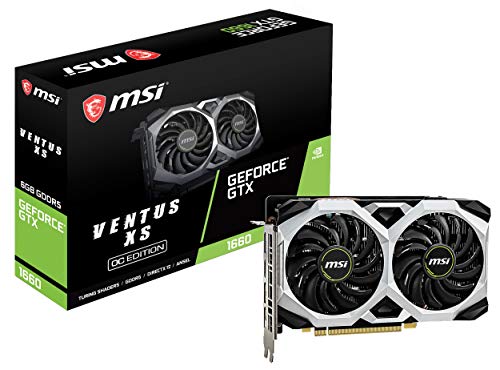
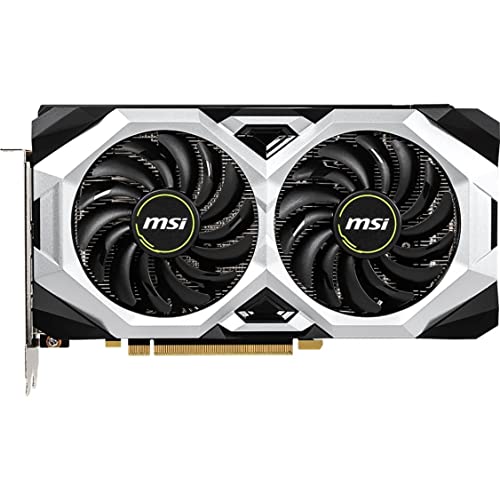
| 1 MSI GTX 1660 VENTUS XS 6G OC | msi | 8.1 × 5.1 × 1.7 in | 0.8 lb | Three DisplayPort outputs | Check price |
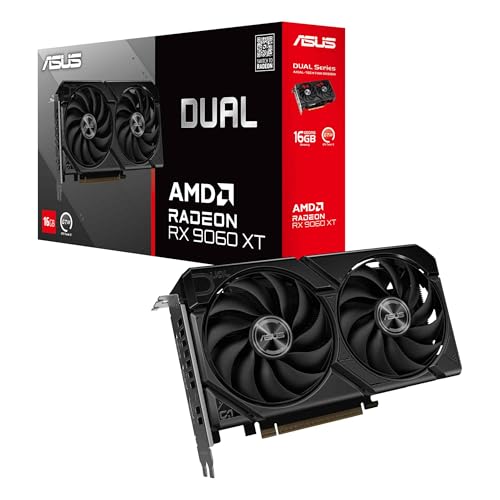
| 2 ASUS Dual Radeon RX 9060 XT 16GB | ASUS | 8 × 4.7 × 1.9 in | 1.3 lb | 16GB GDDR6 memory | Check price |
| 3 XFX Radeon RX 580 8GB GTS XXX Edition | XFX | 10.63 × 1.57 × 4.88 in | 2.5 lb | 8GB GDDR5 memory | Check price |
| 4 MSI RTX 3060 Ventus 2X 12G OC V1 | msi | Not listed | Not listed | 12GB GDDR6 memory | Check price |
| 5 MSI RTX 3050 Ventus 2X 6G OC | msi | 7.4 × 4.3 × 0.1 in | 1.3 lb | 7.4-inch listed length | Check price |
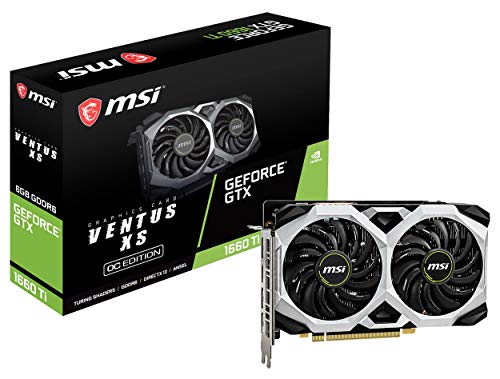
| 6 MSI GTX 1660 Ti Ventus XS 6G OC | msi | 5.1 × 1.7 × 8.1 in | 1.5 lb | Three DisplayPort outputs | Check price |
Sizes and weights as listed by the manufacturer on Amazon. Check the retailer for current price and availability.
Pros
- Three DisplayPort outputs
- 6GB GDDR5 memory
- Listed 1830 MHz boost clock
Cons
- Who should skip it: buyers needing more than 6GB of graphics memory
Pros
- 16GB GDDR6 memory
- Dual BIOS profiles
- 2.5-slot design
- HDMI 2.1b and DisplayPort 2.1a
Cons
- Who should skip it: builders without 2.5-slot clearance
Pros
- 8GB GDDR5 memory
- Multiple display output types
- Factory overclocked settings
- Dual BIOS
Cons
- Requires a minimum 500W power supply
- Who should skip it: users with power supplies below 500W
Best for a 12GB NVIDIA card

Pros
- 12GB GDDR6 memory
- Three DisplayPort outputs
- HDMI 2.1 output
Cons
- Who should skip it: builders needing multiple HDMI outputs

Pros
- 7.4-inch listed length
- One DisplayPort and two HDMI outputs
- 6GB GDDR6 memory
Cons
- Who should skip it: users who need more than 6GB of graphics memory
Pros
- Three DisplayPort outputs
- 6GB GDDR6 memory
- 120W stated power consumption
Cons
- Who should skip it: buyers needing more than 6GB VRAM
Best for 16GB of Memory: ASUS Dual Radeon RX 9060 XT 16GB
For VR buyers prioritizing listed memory capacity: ASUS Dual Radeon RX 9060 XT 16GB has 16GB of GDDR6, a 2.5-slot design, and HDMI 2.1b and DisplayPort 2.1a outputs. Its Dual BIOS offers Quiet and Performance profiles, but the product data does not state card dimensions, power draw, or required connectors, so confirm those details before buying. Skip it if your case cannot accommodate a 2.5-slot card or you need verified power and clearance figures before choosing.
Best for a 12GB NVIDIA Configuration: MSI RTX 3060 Ventus 2X 12G OC V1
For buyers who want a listed 12GB NVIDIA card: MSI RTX 3060 Ventus 2X 12G OC V1 combines 12GB of GDDR6 with three DisplayPort 1.4a outputs and one HDMI 2.1 output. Its digital maximum resolution is listed as 7680 x 4320, though that figure does not establish VR frame rates or compatibility with a particular headset. The product data does not state card dimensions or power requirements. Skip it if you need those details confirmed in the listing before checking your case and power supply.
Best for a Workstation-Oriented VR Build: PNY NVIDIA Quadro P5000 16 GB VR Ready Graphics
For buyers whose VR work also depends on workstation features: PNY NVIDIA Quadro P5000 16 GB VR Ready Graphics lists 16GB of memory, Pascal GPU architecture, and support for NVIDIA Quadro Sync II and Mosaic technology. Its older Pascal architecture and limited product details make it important to verify current software and headset compatibility before purchase. Skip it if your priority is a current gaming-focused card and you do not need the listed workstation features.
Key Numbers at a Glance
- Memory ranges from 6GB on the MSI GeForce GTX 1660 VENTUS XS 6G OC to 16GB on the ASUS Dual Radeon RX 9060 XT 16GB.
- The MSI RTX 3060 Ventus 2X 12G OC V1 lists 12GB of GDDR6, while the PNY NVIDIA Quadro P5000 16 GB VR Ready Graphics lists 16GB.
- The MSI Gaming GeForce GTX 1660 Ti 6GB GDRR6 lists a 1830 MHz boost clock and a 450 W recommended power supply.
- The XFX Radeon RX 580 GTS XXX Edition 1386MHz OC lists a minimum power requirement of 500 watts.
How to Choose a Graphics Card for VR
Match memory and graphics class to your VR workload
Bottom line: Treat memory capacity as one comparison point, not a guarantee of smooth VR. The listed choices range from 6GB on the GTX 1660 and RTX 2060 models to 12GB on the MSI RTX 3060 and 16GB on the ASUS RX 9060 XT and PNY Quadro P5000. More memory can matter for workloads with larger assets, but the listings do not provide comparable VR benchmarks or headset-specific performance. Choose based on the games or applications you intend to run, then check their current graphics requirements against the exact card.
Check headset connections and display-output versions
Bottom line: Confirm that the card has the exact output your headset or adapter needs. The MSI RTX 3060 lists three DisplayPort 1.4a outputs and HDMI 2.1; the ASUS RX 9060 XT lists DisplayPort 2.1a and HDMI 2.1b. Older options differ: the ASUS RTX 2060 lists DisplayPort 1.4, HDMI 2.0, and DVI, while the XFX RX 580 lists DisplayPort, HDMI, and DVI without specifying versions. Check the headset maker’s connection requirements and cable arrangement rather than assuming that matching port names are enough.
Verify power supply capacity and connectors
Bottom line: Do not choose by card name alone; confirm the exact power requirement and connectors. The MSI Gaming GeForce GTX 1660 Ti 6GB GDRR6 specifies a 450 W recommended PSU, while the XFX RX 580 lists a 500-watt minimum. The product data does not state power requirements for every card here, and a wattage figure does not identify the connectors your specific model needs. Check the graphics-card manufacturer’s specifications and your PSU label before ordering; the power supply guide for RTX 5090 covers PSU selection in a different, higher-power context.
Measure case clearance and account for cooling
Bottom line: Compare the exact card’s length and slot thickness with your case before buying. The ASUS RX 9060 XT is identified as a 2.5-slot card, while the product data does not provide dimensions for most of these models. A slot description alone cannot confirm clearance around drive cages, side panels, or neighboring expansion cards. Look up the exact model’s dimensions and compare them with your case manual, especially if you are upgrading an older or compact desktop.
Check model age, condition, and software fit
Bottom line: Confirm the exact variant and its current driver and application support. Several GTX 1660, GTX 1660 Ti, RTX 2060, and RTX 3060 listings identify their cards as renewed, while the Quadro P5000 listing describes Pascal architecture and operating-system support that includes Windows and Linux versions. The product data does not establish future driver support or compatibility with every VR application. For another gaming-PC context, see our guide to gaming laptops for Minecraft, which explains how graphics choices relate to a specific workload.
How We Compared These Products
This guide is based on product research, not firsthand evaluation. We compared the stated memory, output types, clock information, slot design, PSU guidance, and listed workstation features; the product pages do not provide a consistent set of VR benchmarks, card dimensions, or power requirements for every model. Customer ratings and listing labels alone cannot establish performance in a particular headset or game, so verify the manufacturer’s specifications and the software requirements that matter to you.
Which Option Fits Your PC and VR Use?
If memory capacity is your main filter, the ASUS Dual Radeon RX 9060 XT 16GB lists 16GB and a 2.5-slot design; the MSI RTX 3060 Ventus 2X 12G OC V1 offers 12GB and a stated set of HDMI and DisplayPort outputs. For a workstation-oriented feature set, the PNY NVIDIA Quadro P5000 16 GB VR Ready Graphics lists Quadro Sync II and Mosaic support, but check current software compatibility first.
Skip any card if you cannot confirm its case clearance, power requirements, and connection fit for your headset. If you are also comparing full systems rather than upgrading a component, our guide to graphics cards can help you browse related component coverage.
Mistakes to Avoid When Choosing a VR Graphics Card
- Buying by memory alone. Compare the card against the graphics requirements for your actual VR games or software, since memory capacity does not establish frame rates.
- Assuming every DisplayPort or HDMI output is interchangeable. Check the output version and headset connection requirements for the exact card.
- Ignoring the power supply. Verify both PSU capacity and the card’s required power connectors; the listed 450 W recommendation and 500-watt minimum apply to specific models, not every card.
- Skipping physical measurements. Check the exact card dimensions and slot thickness against your case and nearby components before ordering.
Frequently Asked Questions
Does a “VR Ready” label guarantee a good experience?
No. A label does not establish performance in a particular headset, game, or software version. Check the application’s current graphics requirements and the card’s exact specifications before you decide.
Is 6GB of graphics memory enough for VR?
The listings include several 6GB cards, but they do not provide comparable VR benchmarks or a workload-specific minimum. Check the requirements for the titles you plan to use, then weigh memory alongside the GPU model, connection needs, and PC compatibility.
Which listed card has 16GB of memory?
The ASUS Dual Radeon RX 9060 XT 16GB and PNY NVIDIA Quadro P5000 16 GB VR Ready Graphics both list 16GB. The ASUS card lists HDMI 2.1b, DisplayPort 2.1a, and a 2.5-slot design, while the PNY listing emphasizes workstation features; verify the exact outputs and current application compatibility for either model.
Can I use any graphics card with my VR headset?
No. The card must meet the headset and application requirements, and its ports must match the headset connection or an appropriate adapter. Check the headset maker’s current guidance and the exact graphics-card output specifications.
How do I know if a card fits my case and power supply?
Compare the exact card’s length and thickness with the case’s available clearance, then check the card’s stated PSU capacity and connector requirements against your power supply. This product data does not include those details for every model, so consult the manufacturer specifications before purchase.


Write Your Review
No reviews yet. Be the first to share your experience!