


AutoCAD users often choose between a comfortable productivity mouse, a shortcut-heavy MMO mouse, and a compact design that saves desk space. The wrong fit can make pan, zoom, selection, and repeated commands feel slower or force your hand into an uncomfortable position during long drawing sessions.
This guide to the best mouse for AutoCAD compares programmable controls, scrolling, sensor resolution, connection types, battery life, hand position, and workspace requirements. It includes options for command-heavy workflows, small desks, wireless setups, and users who prioritize a more upright grip.
Compare at a glance
| Product | Brand | Size | Weight | Stands out for | Price |
|---|---|---|---|---|---|
| 1 Logitech G305 Wireless Gaming Mouse | Logitech G | 2.45 × 1.5 × 4.6 in | 0.2 lb | LIGHTSPEED wireless with a stated 1 ms report rate | Check price |
| 2 Logitech MX Master 4 Wireless Mouse | Logitech | Not listed | Not listed | Customizable haptic feedback | Check price |
| 3 Logitech ERGO M575S Trackball Mouse | Logitech | 4.13 × 3.94 × 5.28 in | Not listed | Space-saving thumb-controlled tracking | Check price |
| 4 Logitech M510 Wireless Mouse | Logitech | 2.83 × 1.81 × 5.16 in | 0.3 lb | Full-size contoured shape with soft rubber grips | Check price |
| 5 Logitech MX Vertical Ergonomic Mouse | Logitech | 4.72 × 3.11 × 3.09 in | 0.5 lb | Ergonomic vertical design with thumb rest | Check price |
Sizes and weights as listed by the manufacturer on Amazon. Check the retailer for current price and availability.
Pros
- LIGHTSPEED wireless with a stated 1 ms report rate
- Up to 12,000 DPI HERO sensor
- Built-in nano receiver storage
- Six programmable buttons
Cons
- Requires one AA battery
- Who should skip it: users seeking a built-in rechargeable battery
Pros
- Customizable haptic feedback
- Fast, precise MagSpeed scrolling
- Bluetooth and USB-C dongle connectivity
- Quiet clicks and thumb scroll wheel
Cons
- Who should skip it: users seeking a basic, no-frills mouse
Pros
- Space-saving thumb-controlled tracking
- Bluetooth and Logi Bolt connectivity
- Up to 18 months of stated battery life
- Quiet clicks
Cons
- Who should skip it: users who prefer a conventional moving mouse
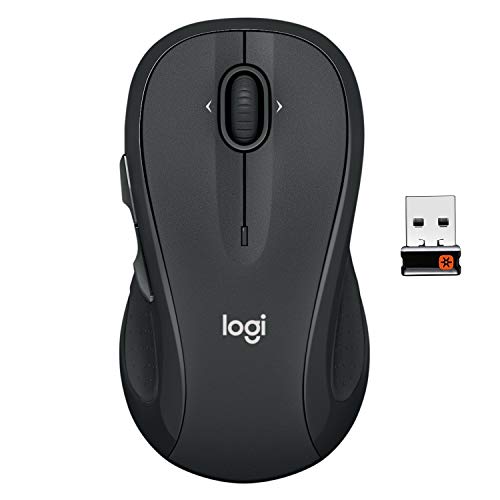
Pros
- Full-size contoured shape with soft rubber grips
- Back and Forward buttons
- Two-year stated battery life
Cons
- Side-scroll and zoom require Logitech software
- Who should skip it: users needing those controls without software

Pros
- Ergonomic vertical design with thumb rest
- Adjustable cursor speed
- Rechargeable wireless operation
Cons
- Who should skip it: users who prefer a conventional mouse shape
Key Numbers at a Glance
- Programmable controls range from 3 on the Logitech ERGO M575S Trackball Mouse to 19 on the Razer Naga V2 HyperSpeed MMO Mouse.
- Listed wireless battery life ranges from 45 hours with backlighting on for the Redragon M913 Wireless MMO Mouse to up to 400 hours on Bluetooth for the Razer Naga V2 HyperSpeed MMO Mouse.
- Sensor resolution ranges from 4,000 DPI on the Logitech MX Vertical Ergonomic Mouse to 30,000 DPI on the Razer Naga V2 HyperSpeed MMO Mouse.
- The Logitech G305 Wireless Gaming Mouse weighs 3.4 oz, while the other listings do not state a comparable weight.
Best Overall Productivity Mouse for AutoCAD: Logitech MX Master 4 Wireless Mouse
Logitech MX Master 4 Wireless Mouse combines an 8K DPI sensor, a thumb scroll wheel, customizable haptic feedback, and the Actions Ring for app-specific shortcuts. Its MagSpeed wheel is designed for rapid scrolling while still allowing more controlled movement, which suits large drawings and long tool panels.
The trade-off is that the listing does not state a battery runtime, and its larger ergonomic design may not suit users who prefer a compact mouse. Skip it if you need a lightweight gaming shape or a large bank of physical shortcut buttons.
Best for Shortcut-Heavy AutoCAD Workflows: Razer Naga V2 HyperSpeed MMO Mouse
Razer Naga V2 HyperSpeed MMO Mouse offers 19 programmable buttons, HyperScroll, and a Focus Pro 30K optical sensor. That button count gives command-heavy users more places to assign frequently repeated actions, while the scroll wheel supports either free-spin or tactile operation.
The mouse uses a gaming-oriented shape and mechanical switches rated for up to 60 million clicks, but it is less focused on an upright ergonomic posture than the vertical models. Skip it if your priority is a compact office mouse or a hand position designed around a 57-degree angle.
Best Vertical Mouse for AutoCAD Comfort: Logitech MX Vertical Ergonomic Mouse
Logitech MX Vertical Ergonomic Mouse uses a 57-degree vertical angle, a thumb rest, and a 4,000 DPI sensor with a cursor speed switch. The design is aimed at a handshake-style grip, and the speed switch lets you change cursor behavior without opening software.
It has fewer controls than the MX Master 4 or Razer Naga V2 HyperSpeed MMO Mouse, and the product page does not state a battery runtime. Skip it if you need many physical shortcuts or prefer a traditional low-profile mouse shape.
Best Space-Saving Mouse for AutoCAD: Logitech ERGO M575S Trackball Mouse
Logitech ERGO M575S Trackball Mouse moves the cursor through a thumb-controlled trackball, so the mouse itself does not need to travel across the desk. It has 3 customizable buttons, Bluetooth or Logi Bolt connectivity, and up to 18 months of battery life, making it a practical fit for a small workstation.
The trackball requires a different control style from a conventional optical mouse, and its 3 customizable buttons offer fewer direct shortcuts than the MMO models. Skip it if you want conventional mouse movement or a larger physical button bank.
Buying Guide: How to Choose the Best Mouse for AutoCAD
Programmable Buttons and Command Access
Bottom line: Choose a high button count when you repeat commands often, but do not pay for controls you will not use. The Razer Naga V2 HyperSpeed MMO Mouse lists 19 programmable buttons, while the Redragon M913 Wireless MMO Mouse lists 16 total buttons, including 12 side buttons. These layouts can put shortcuts closer to your thumb, though they also require more setup and memorization than a standard five-button design.
The Logitech MX Master 4 Wireless Mouse takes a different approach with an Actions Ring, customizable haptic feedback, and intuitive buttons rather than a dense side grid. For occasional shortcuts, that app-oriented design may be easier to manage. If you want a simpler workflow, the Logitech M510 Wireless Mouse has Back and Forward buttons that can be programmed for actions such as switching applications or zooming, according to the listing.
For more shortcut-focused comparisons, see our guide to best mice for Excel, where button placement and scrolling also affect repetitive work.
Cursor Precision and Scrolling
Bottom line: Prioritize adjustable cursor speed and controllable scrolling over a large DPI number alone. The Razer Naga V2 HyperSpeed MMO Mouse lists a 30,000 DPI Focus Pro sensor, while the Logitech G305 Wireless Gaming Mouse reaches 12,000 DPI and the Logitech MX Vertical Ergonomic Mouse reaches 4,000 DPI. AutoCAD navigation usually benefits from predictable cursor movement, so the ability to adjust speed and use a steady scroll wheel matters more than selecting the highest stated resolution.
The Logitech MX Master 4 Wireless Mouse has a MagSpeed wheel designed for both rapid scrolling and precise stopping. The Razer Naga V2 HyperSpeed MMO Mouse offers free-spin and tactile scrolling, while the Logitech M510 Wireless Mouse includes side-to-side scrolling and zoom functions. Check the software controls and wheel behavior before buying if you regularly work across large drawings or detailed tool palettes.
Shape, Grip, and Long Drawing Sessions
Bottom line: Match the shape to your hand position first, because extra buttons do not compensate for a grip you dislike. The Logitech Lift Vertical Ergonomic Mouse and Logitech MX Vertical Ergonomic Mouse both use a 57-degree vertical design. Lift is described as a fit for small to medium right hands, while MX Vertical uses a textured surface, thumb rest, and handshake position.
Traditional shapes remain available if you do not want a vertical transition. The Logitech MX Master 4 Wireless Mouse uses a natural tilt and thumb scroll wheel, and the Logitech ERGO M575S Trackball Mouse supports cursor movement without moving the whole hand across the desk. The trackball saves surface area, but it has a different learning curve from a conventional optical mouse.
If wrist posture is your main concern, compare more shapes in our guide to best mice for carpal tunnel. That guide can help you weigh vertical, trackball, and traditional designs before focusing on button layouts.
Wireless Connection, Wired Use, and Battery Life
Bottom line: Choose the connection that matches your ports and tolerance for battery management. The Razer Naga V2 HyperSpeed MMO Mouse supports 2.4 GHz wireless and Bluetooth, with up to 250 hours on HyperSpeed and up to 400 hours on Bluetooth. The Redragon M913 Wireless MMO Mouse supports 2.4 GHz wireless and USB-C wired use, but its listed battery figures are 45 hours with backlighting on and up to 80 hours in Eco mode.
Bluetooth and receiver flexibility can help laptop users avoid a cable during drawing sessions. Logitech Lift supports Bluetooth Low Energy and a Logi Bolt USB-A receiver, while the Logitech ERGO M575S Trackball Mouse supports Bluetooth and includes a Logi Bolt receiver. Verify whether your computer has an available USB-A port or whether Bluetooth pairing fits your setup.
For a basic receiver-based setup, the Logitech M185 Compact Wireless Mouse lists up to one year of battery life, and the Logitech M510 Wireless Mouse lists two years. Neither model offers the shortcut density of the MMO choices, so their appeal is simple wireless control rather than extensive command mapping.
Desk Space, Portability, and Handedness
Bottom line: Pick a trackball or compact mouse when the desk limits movement, and check handedness before ordering. The Logitech ERGO M575S Trackball Mouse keeps the hand in one place while the thumb moves the cursor, making it suitable for space-saving setups and different surfaces. The Logitech M185 Compact Wireless Mouse is ambidextrous and designed for small to medium hands, while the Logitech M510 Wireless Mouse has an ambidextrous full-size design.
Vertical options require closer attention to hand fit. Logitech describes Lift as a good fit for small to medium right hands, so left-handed users and people with larger hands should verify the exact variant before buying. For more compact-grip comparisons, see our guide to best mice for fingertip grip.
How We Compared These Products
This comparison uses the product listings’ stated button counts, sensor resolutions, scrolling features, shapes, connection methods, operating system information, and battery claims. It also considers the design trade-offs visible in the specifications, such as a trackball’s stationary footprint, a vertical mouse’s 57-degree angle, and an MMO mouse’s larger shortcut layout. The guide is based on product research and available listing information, not firsthand evaluation.
Which Option Fits Your Home and Devices?
Choose the labeled productivity pick when you want a general-purpose AutoCAD mouse with advanced scrolling and app-oriented controls. Choose the shortcut-focused pick when command access matters more than a conventional office shape, or choose the space-saving pick when your desk cannot accommodate broad mouse movement.
Users who prioritize a more upright grip should start with the labeled vertical pick and confirm hand size and handedness before purchase. If none of those designs fits your routine, compare the simpler Logitech M510 Wireless Mouse or Logitech M185 Compact Wireless Mouse for basic receiver-based control.
Mistakes to Avoid When Choosing a Mouse for AutoCAD
- Buying by DPI alone. A higher sensor number does not automatically make cursor control better for your workflow. Check whether the mouse offers usable speed adjustment and predictable scrolling.
- Ignoring button placement. A 19-button mouse can help with repeated commands, but a dense side grid may be less comfortable than a few well-placed controls. Match the layout to the shortcuts you actually use.
- Overlooking hand fit. Vertical mice have a different posture, and Lift is specifically described for small to medium right hands. Confirm the shape and handedness before ordering.
- Forgetting receiver and port needs. Wireless models differ between Bluetooth, USB-A receivers, 2.4 GHz connections, and USB-C wired use. Check your computer’s available ports and pairing options first.
Frequently Asked Questions
What mouse features matter most for AutoCAD?
Adjustable cursor control, reliable scrolling, comfortable shape, and convenient shortcut access matter most. A high button count helps if you repeat commands, while a thumb scroll wheel or tactile scroll mode can help with navigation through large drawings.
Is a vertical mouse good for AutoCAD?
A vertical mouse can suit users who prefer a more upright grip. The Logitech MX Vertical Ergonomic Mouse and Logitech Lift Vertical Ergonomic Mouse both use a 57-degree angle, but Lift is described for small to medium right hands, so check fit before choosing.
Is a trackball useful for a small AutoCAD desk?
A trackball can be useful when the mouse cannot travel far because the cursor is controlled with the thumb. The Logitech ERGO M575S Trackball Mouse also lists 3 customizable buttons and up to 18 months of battery life, but it uses a different control method from a conventional optical mouse.
Do these mice work with laptops?
Several listings include Bluetooth or receiver support for laptop use. Logitech Lift, Logitech MX Master 4 Wireless Mouse, and Logitech ERGO M575S Trackball Mouse list Bluetooth connectivity, while receiver-based models require attention to available USB-A ports.
Should I choose an MMO mouse for AutoCAD shortcuts?
Choose an MMO mouse when you have many repeated commands and want them assigned to physical buttons. The Razer Naga V2 HyperSpeed MMO Mouse lists 19 programmable buttons, while the Redragon M913 Wireless MMO Mouse lists 16 total buttons, but both require more deliberate button mapping than a simpler office mouse.
Which mouse is easiest to maintain during long projects?
A conventional optical mouse generally avoids the moving ball mechanism used by a trackball, while a trackball keeps the mouse stationary on the desk. The listings do not provide detailed cleaning schedules, so follow the manufacturer’s care instructions for whichever design you choose.
For adjacent desk decisions, our guide to best mice for productivity compares connection options, shapes, and workflow-oriented controls across related designs.


Write Your Review
No reviews yet. Be the first to share your experience!