


If your MacBook needs a monitor, card reader, and charging connection through one adapter, choose a hub based on the ports and display support your specific Mac can use. This guide to the best USB-C hubs for MacBook compares compact fit-style adapters with multiport options, including trade-offs in HDMI refresh rate, data speed, and compatibility.
Compare at a glance
| Product | Brand | Size | Weight | Stands out for | Price |
|---|---|---|---|---|---|
| 1 Anker 7-in-1 USB-C Hub, 4K@60Hz HDMI | Anker | 5.17 × 1.46 × 0.47 in | 0.1 lb | Compact 7-in-1 design | Check price |
| 2 Anker 332 5-in-1 USB-C Hub, 4K HDMI | Anker | 4.78 × 1.59 × 0.45 in | 0.1 lb | Three data ports support speeds up to 5 Gbps | Check price |
| 3 UGREEN 5-in-1 USB-C Hub, 4K HDMI | UGREEN | 4.79 × 1.09 × 0.47 in | 0.2 lb | Combines five ports in one hub | Check price |
| 4 Hiearcool 7-in-1 USB-C Hub, 4K HDMI | Hiearcool | 4.17 × 1.4 × 0.34 in | 0.1 lb | Combines seven connection functions in one hub | Check price |
| 5 Melelink 8-in-2 MacBook USB-C Hub | Melelink | Not listed | 0.2 lb | Combines display, data, and card-reader connections | Check price |
| 6 Selore&S-Global 7-in-2 MacBook USB-C Hub | Selore&S-Global | Not listed | Not listed | Multiple ports in a compact hub | Check price |
| 7 BHHB 8-in-2 USB-C Hub | BHHB | Not listed | 0.2 lb | Combines display, card-reader, USB, and Thunderbolt connections | Check price |
| 8 Tioleje 7-in-1 USB-C Hub with 4K HDMI | Tioleje | Not listed | Not listed | Combines display, data, charging, and card-reader connections | Check price |
| 9 Anker 547 MacBook Hub, 4K HDMI | Anker | 0 × 0 × 0 in | 0.2 lb | Several port types in one compact hub | Check price |
Sizes and weights as listed by the manufacturer on Amazon. Check the retailer for current price and availability.
Pros
- Compact 7-in-1 design
- 4K at 60Hz HDMI output
- Three 5Gbps data ports
- SD and TF card slots
Cons
- Charger not included
- Who should skip it: users needing USB-C video output
Pros
- Three data ports support speeds up to 5 Gbps
- Pass-through charging up to 85 W
- HDMI output up to 4K at 30 Hz
Cons
- USB-C ports do not support video output
- Not compatible with Linux
- Who should skip it: users needing HDMI above 4K at 30 Hz
Pros
- Combines five ports in one hub
- Supports USB-C pass-through charging up to 100W
- Includes one 5Gbps USB-A data port
Cons
- HDMI output is limited to 4K at 30Hz
- Who should skip it: users who need faster external-display refresh rates

Pros
- Combines seven connection functions in one hub
- Supports USB-C PD pass-through charging up to 100W
- Includes both SD and TF card readers
- Compact, lightweight aluminum design
Cons
- Who should skip it: users needing 4K at 60Hz

Pros
- Combines display, data, and card-reader connections
- Thunderbolt 3 supports charging and high-speed data
- Reads SD and microSD cards simultaneously
Cons
- Does not fit with a case on the MacBook underside
- M1 MacBooks cannot use both external displays
- Who should skip it: users needing a case-compatible hub
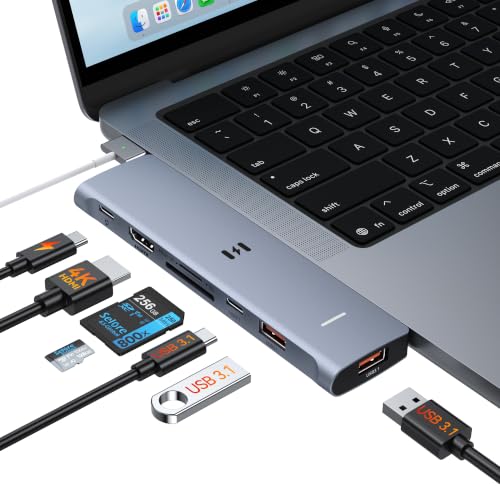
Pros
- Multiple ports in a compact hub
- 4K at 60Hz HDMI output
- SD and microSD card slots
Cons
- Not compatible with MacBook cases
- Who should skip it: MacBook Neo owners needing dual displays

Pros
- Combines display, card-reader, USB, and Thunderbolt connections
- MagSafe port remains accessible
- Plug-and-play operation without drivers
Cons
- HDMI output tops out at 4K 30Hz
- M1 to M3 MacBooks cannot run two external displays
- Who should skip it: MacBook Neo owners and bottom-case users

Pros
- Combines display, data, charging, and card-reader connections
- Simultaneous SD and TF card access
- MagSafe port remains accessible
Cons
- Not compatible with cases or covers
- Who should skip it: MacBook Neo users needing Thunderbolt display output

Pros
- Several port types in one compact hub
- HDMI supports 4K at 60Hz
- Up to 100W charging through the multi-function USB-C port
Cons
- M1, M2, and M3 MacBooks do not support dual external displays
- Who should skip it: MacBook Neo owners
Best USB-C Hub for MacBook With 10Gbps Data: Selore&S-Global USB C Adapter HDMI Hub for MacBook Neo/Air/Pro
Selore&S-Global USB C Adapter HDMI Hub for MacBook Neo/Air/Pro stands out for its listed 10Gbps USB-A and USB-C data ports, 4K@60Hz HDMI, and SD and microSD slots. Its Thunderbolt 3 port also lists up to 40Gbps data and 5K@60Hz video on compatible Macs. It will not fit MacBooks with cases, and the Neo uses HDMI for video while its Thunderbolt port is limited to charging and USB 2.0 data. Skip it if your MacBook has a case or you need video through the hub’s Thunderbolt port on Neo.
Best Compact MacBook Fit Hub: Tioleje 7 in 1 USB C Hub for MacBook Neo/Air/Pro 2026-2018
Tioleje 7 in 1 USB C Hub for MacBook Neo/Air/Pro 2026-2018 lists a contoured fit for MacBook Air and Pro models and Neo, with MagSafe left clear. Its ports include 4K@60Hz HDMI, two USB 3.0 ports, SD and TF slots, and a Thunderbolt 3 port. The product page says it is not compatible with cases, and Neo gets HDMI video only. Skip it if you need to keep a protective case on your MacBook.
Best MacBook Hub for 4K@60Hz HDMI and Thunderbolt: Anker USB-C Hub for MacBook
Anker USB-C Hub for MacBook combines 4K@60Hz HDMI with a multifunction USB-C port that lists up to 5K@60Hz video, 40Gbps data, and 100W charging. It adds two USB-A ports and SD and microSD readers, but does not work with MacBook Neo; M1, M2, and M3 Macs do not support dual external displays according to the listing. Skip it if you own a Neo or want a simpler hub with fewer display features.
Key Numbers at a Glance
- HDMI output ranges from 4K@30Hz on the UGREEN USB C Hub 5 in 1 Multiport USB Adapter 4K to 4K@60Hz on the Anker USB-C Hub for MacBook.
- USB data ports list speeds from 5Gbps on the Anker USB C Hub, 7in1 Multi-Port USB Adapter to 10Gbps on the Selore&S-Global USB C Adapter HDMI Hub for MacBook Neo/Air/Pro.
- Pass-through laptop charging is listed at up to 85W on the Anker USB C Hub, 7in1 Multi-Port USB Adapter and up to 100W on the Anker USB-C Hub for MacBook.
- Card-reader speeds are listed up to 104MB/s on the Melelink USB C Hub Adapter for MacBook Pro/Air M5 M4 M3 M2 and up to 180MB/s on the Tioleje 7 in 1 USB C Hub for MacBook Neo/Air/Pro 2026-2018.
How to Choose a USB-C Hub for MacBook
Check Mac model and physical fit
Bottom line: Confirm your exact MacBook model and whether the hub fits with your case before ordering. Tioleje and Selore&S-Global list compatibility with MacBook Neo, while the Anker USB-C Hub for MacBook explicitly excludes Neo. Several hubs designed to plug directly into two MacBook ports state that they are incompatible with cases or bottom covers, so check whether your setup leaves the connector area unobstructed.
Also check whether the hub leaves MagSafe available if you charge that way. Tioleje and the Anker USB-C Hub for MacBook state that their designs leave MagSafe clear, while the BHHB hub says it will not block MagSafe but excludes Neo and MacBooks with a bottom case.
Match HDMI and external-display support to your Mac
Bottom line: Choose HDMI refresh rate for your monitor, then verify how many external displays your Mac supports. The UGREEN USB C Hub 5 in 1 Multiport USB Adapter 4K and Hiearcool 7-in-1 USB C Hub list HDMI up to 4K@30Hz, while several options, including the Anker USB C Hub, 7in1 Multi-Port USB Adapter, list 4K@60Hz. A higher listed HDMI refresh rate does not override your Mac’s own display limits.
Some hubs add a multifunction Thunderbolt port for a second display, but model support varies. The Anker USB-C Hub for MacBook lists 4K@60Hz HDMI and up to 5K@60Hz through its multifunction port, while its product page says M1, M2, and M3 Macs do not support two external displays. For smoother gaming or motion, compare your monitor needs with our best 240Hz gaming monitors guide, but confirm the Mac and hub can deliver the display mode you want.
Separate charging ports from data and video ports
Bottom line: Do not assume every USB-C port on a hub transfers files or outputs video. The Anker USB C Hub, 7in1 Multi-Port USB Adapter lists a USB-C data port and a separate PD input, while the Anker USB C Hub, 5-in-1 USBC to HDMI Splitter states that its PD input is for charging only and its data port does not output video. Check the port description before connecting a drive or display.
Pass-through wattage is also not the same as power delivered to the laptop: the BHHB listing says its 100W input provides 85W to the laptop, with 15W reserved for peripherals. Anker’s 7-in-1 hub likewise lists up to 85W laptop charging and requires a separate charger. If you are comparing portable computers as well, our best laptops under $300 guide covers a different buying constraint, but the same port checks still matter.
Choose data speed and card slots for your workload
Bottom line: Match the hub’s listed data speed and card formats to the devices you connect most. The Selore&S-Global hub lists 10Gbps USB data ports, compared with 5Gbps USB ports on the Anker USB C Hub, 7in1 Multi-Port USB Adapter. Those figures describe port specifications, not guaranteed transfer rates for every drive.
Photographers should check whether they need SD, microSD, or both. The Melelink hub lists simultaneous SD and microSD reading up to 104MB/s, while Tioleje lists independent SD and TF slots up to 180MB/s; confirm card type and your reader workflow before choosing.
Consider port count and the slower auxiliary ports
Bottom line: Count the devices you will connect, and distinguish fast storage ports from basic peripheral ports. UGREEN’s five-in-one hub has one USB-A port rated at 5Gbps and two USB-A ports rated at 480Mbps, making the slower ports more appropriate for basic accessories than fast file transfers. Hubs with several USB-A ports, such as the Anker USB C Hub, 7in1 Multi-Port USB Adapter, offer more connection points, but you still need to check each port’s speed.
How We Compared These Products
This guide is based on product research, comparing listed ports, charging figures, display modes, card-reader claims, physical-fit notes, compatibility, and available customer feedback. The product pages do not establish how each hub performs in a particular MacBook setup, so verify the exact model and intended port functions before buying.
Which Option Fits Your MacBook and Devices?
If 10Gbps USB data is the priority, the Selore&S-Global hub’s listed speeds distinguish it from hubs with 5Gbps USB data ports; its case restriction is an important trade-off. If compact MacBook fit and MagSafe clearance matter more, the Tioleje hub lists a contour-matched design and clear MagSafe access, but it also cannot be used with a case.
Mistakes to Avoid When Choosing a MacBook USB-C Hub
- Assuming USB-C means video. Check whether the specific port supports video; some listed USB-C ports handle data or charging only.
- Buying for a second display without checking the Mac. Compare the hub’s display claims with your Mac model’s external-display limits.
- Ignoring case clearance. Direct-fit hubs in this roundup state that they do not fit MacBooks with cases or bottom covers.
- Reading input wattage as laptop output. Look for the stated pass-through power delivered to the laptop and confirm whether a separate charger is needed.
Frequently Asked Questions
Will any USB-C hub work with a MacBook?
No. Check the MacBook model, port support, and physical fit. For example, the Anker USB-C Hub for MacBook excludes Neo, while Tioleje and Selore&S-Global list Neo compatibility with specific limits.
Can these hubs connect two external monitors?
Some list both HDMI and a multifunction Thunderbolt port, but dual-display support depends on the Mac. The Anker USB-C Hub for MacBook says M1, M2, and M3 MacBooks do not support two external displays; check your Mac’s display specifications before relying on a dual-monitor setup.
Does a 100W PD port deliver 100W to the MacBook?
Not necessarily. BHHB lists 100W input with 85W delivered to the laptop, and its description reserves 15W for peripherals. Anker’s seven-in-one hub also lists up to 85W laptop charging and requires a separate charger.
Which hub is better for transferring photos?
The Tioleje hub lists SD and TF card slots with simultaneous reading and writing up to 180MB/s. Melelink lists simultaneous SD and microSD reading up to 104MB/s. Check that the slot names match your card format.
Can I use a direct-fit hub with a MacBook case?
Several direct-fit models explicitly exclude cases or bottom covers, including Tioleje, Melelink, and Selore&S-Global. If you keep a case installed, verify the fit with the manufacturer or choose a hub connected by a separate cable, if its product design and ports suit your needs.




Write Your Review
No reviews yet. Be the first to share your experience!