


If you’re choosing an external SSD for Apple Time Machine, match the drive’s capacity and connection to your Mac before you buy. A compact 1TB model can suit routine backups of a smaller Mac, while a 2TB or 4TB drive gives a larger photo or video library more room; faster advertised transfer speeds matter most when moving large files, and depend on your Mac’s port.
Compare at a glance
| Product | Brand | Size | Weight | Stands out for | Price |
|---|---|---|---|---|---|
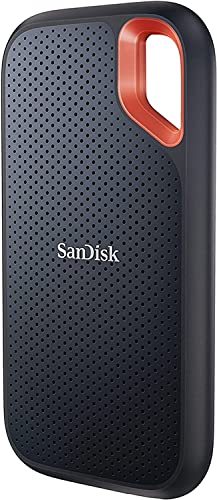
| 1 SanDisk Extreme Portable SSD 2TB | SANDISK | 3.35 × 2 × 0.39 in | 0.1 lb | 2TB storage capacity | Check price |
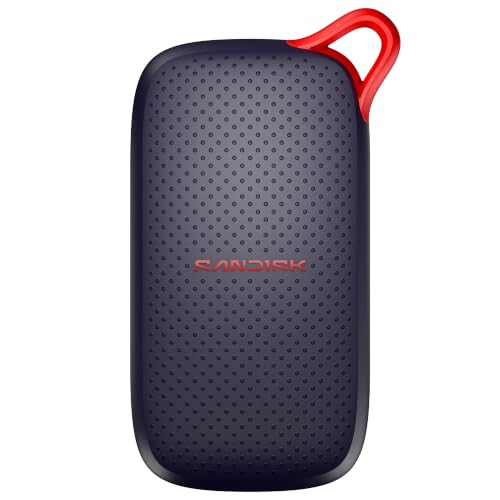
| 2 SanDisk 1TB Portable SSD | SANDISK | 1.77 × 3.35 × 0.39 in | 0.1 lb | 1TB capacity | Check price |
| 3 SanDisk Extreme Portable SSD 2TB | SANDISK | 3.97 × 2.07 × 0.38 in | 0.1 lb | 2TB portable storage capacity | Check price |
| 4 SanDisk 2TB Portable SSD, 1000MB/s | SANDISK | 1.77 × 3.35 × 0.39 in | 0.1 lb | Large 2TB storage capacity | Check price |
| 5 SanDisk Extreme Portable SSD 4TB | SANDISK | 3.35 × 2 × 0.39 in | 0.1 lb | 4TB of storage | Check price |
| 6 SanDisk Extreme Portable SSD 1TB | SANDISK | 3.35 × 2 × 0.39 in | 0.1 lb | Compact, pocket-sized design | Check price |
| 7 SanDisk Desk Drive SSD, 4TB | SANDISK | 3.9 × 3.9 × 1.58 in | 0.6 lb | High 4TB capacity | Check price |
Sizes and weights as listed by the manufacturer on Amazon. Check the retailer for current price and availability.
Pros
- 2TB storage capacity
- Pocket-sized design
- IP65 water and dust resistance
- Up to 3-meter drop protection
Cons
- Who should skip it: buyers who need more than 2TB
Pros
- 1TB capacity
- Compact, lightweight design
- Stated 2-meter drop protection
Cons
- Who should skip it: users who need a stated write speed
Pros
- 2TB portable storage capacity
- IP65 water and dust resistance
- Up to 3-meter drop protection
- Password protection with 256-bit AES hardware encryption
Cons
- Who should skip it: users needing guaranteed transfer speeds
Pros
- Large 2TB storage capacity
- Compact and lightweight design
- Up to 1000 MB/s stated read speed
- Drop protection up to 2 meters
Cons
- Sustained transfer performance is not specified
- USB-C capabilities beyond stated compatibility are not detailed
- Who should skip it: users needing specified sustained speeds
Pros
- 4TB of storage
- USB-C 3.2 Gen 2 interface
- IP65-rated water and dust resistance
- Up to 3-meter drop protection
Cons
- Who should skip it: buyers needing more than 4TB in one drive
Pros
- Compact, pocket-sized design
- IP65 water and dust resistance
- Up to 3-meter drop protection
- Password-protected 256-bit AES encryption
Cons
- Who should skip it: users who need more than 1TB

Pros
- High 4TB capacity
- USB Type-C connection
- Windows and Mac compatibility
Cons
- Who should skip it: users who need automatic backups without installing software
Best Overall for Mac Backups: Samsung T9 Portable SSD 1TB
Samsung T9 Portable SSD 1TB lists USB 3.2 Gen 2×2 speeds up to 2,000 MB/s and a thermal feature designed for extended use. That speed is a useful specification for large file transfers, but your Mac and cable connection determine actual throughput. The trade-off is 1TB capacity, which may be tight for a Mac with a large media library.
Skip it if you need more than 1TB of backup capacity or your Mac cannot make use of its higher-speed interface.
Best Rugged 2TB Choice: SanDisk Extreme Portable SSD 2TB
SanDisk Extreme Portable SSD 2TB combines 2TB capacity with listed transfer speeds up to 2,000 MB/s, IP65 water and dust resistance, and drop protection up to 3 meters. Its portable design suits a drive that may travel between home and work, while password protection with 256-bit AES encryption is listed for private files. The product page does not specify Time Machine setup details, so confirm macOS formatting and workflow before relying on it.
Skip it if you want a stationary desktop drive or do not need its rugged features.
Best for a Large Backup Library: Sandisk 4TB Desk Drive SSD
Sandisk 4TB Desk Drive SSD offers the largest stated capacity in this guide, 4TB, with read speeds up to 1,000 MB/s. It comes formatted as exFAT for Windows or Mac and includes downloadable software for automatic backups, although that software is not the same as Apple Time Machine. Its desk-oriented form is less suited to frequent travel than pocket-sized portable drives.
Skip it if portability or a smaller footprint matters more than having 4TB in one drive.
Best Compact 1TB Option: SanDisk 1TB Portable SSD
SanDisk 1TB Portable SSD lists read speeds up to 1,000 MB/s, USB-C connectivity, and drop protection up to 2 meters in a pocket-sized design. It is a straightforward capacity and portability fit for a smaller backup set, but it has less room than the 2TB and 4TB alternatives.
Skip it if your Mac’s data already approaches 1TB or you want extra room for future files.
Key Numbers at a Glance
- Capacity ranges from 1TB on the Samsung T9 Portable SSD 1TB to 4TB on the Sandisk 4TB Desk Drive SSD.
- Listed maximum read speeds range from 1,000 MB/s on the SanDisk 1TB Portable SSD to 2,000 MB/s on the Samsung T9 Portable SSD 1TB.
- The SanDisk Extreme Portable SSD 2TB lists IP65 water and dust resistance and drop protection up to 3 meters.
- The SanDisk 1TB Portable SSD lists drop protection up to 2 meters.
How to Choose the Best External SSD for Apple Time Machine
Capacity and backup history
Bottom line: Choose enough capacity for your Mac’s current data and the backup history you want to retain. The listed choices include 1TB, 2TB, and 4TB models, including the Sandisk 4TB Desk Drive SSD and SanDisk Extreme Portable SSD 2TB. A drive that is nearly full leaves less room for future backups, so check your Mac’s used storage and consider how much it may grow.
Time Machine manages backup history on its destination drive, so capacity is not simply a one-time copy of your Mac’s files. If your needs lean toward higher-capacity conventional storage rather than an SSD, compare our best 4TB external hard drives.
Mac ports and connection speed
Bottom line: Check the drive interface and your Mac’s available port before paying for a higher speed rating. The Samsung T9 lists USB 3.2 Gen 2×2 and up to 2,000 MB/s, while the older SanDisk Extreme Portable SSD 2TB lists up to 1,050 MB/s read and 1,000 MB/s write. The newer SanDisk Extreme models also list up to 2,000 MB/s, but a speed figure is a manufacturer specification, not a guarantee of sustained or real-world transfer rates.
USB-C describes a connector, not a promise that every drive and computer supports the same data rate. Check your Mac’s port specifications and the drive’s required cable or interface; consider the portable SSDs under $100 guide if a less costly portable drive is your priority.
Formatting and Time Machine setup
Bottom line: Confirm the drive’s format and prepare it for Time Machine rather than assuming every external SSD is ready to use. The Sandisk 4TB Desk Drive SSD comes in exFAT format for Windows or Mac, but that does not mean it is already configured as a Time Machine destination. macOS may require you to erase or reformat an external drive for the backup setup you choose, which can remove files already on it.
Back up any existing files elsewhere before changing a drive’s format. If you also use the SSD with Windows, verify the file-system plan first, since a format chosen for Time Machine may affect cross-platform use.
Portability, protection, and encryption
Bottom line: Pick a portable, protected model for travel, or a desk drive when capacity and a fixed setup matter more. The SanDisk Extreme Portable SSD 2TB lists IP65 water and dust resistance, up to 3-meter drop protection, and 256-bit AES encryption; the SanDisk 1TB Portable SSD lists up to 2-meter drop protection. These features address different concerns, so choose based on where you keep and carry the backup.
Encryption and password features can add access steps and may require setup; confirm how a feature works with macOS before making it part of your backup plan. No external SSD replaces keeping an independent second copy of important files.
How We Compared These Products
This guide compares the listed capacities, interface and speed claims, portability features, durability claims, and Mac compatibility details. It is based on product research rather than firsthand evaluation; the product pages do not confirm Time Machine configuration for every model, so buyers should verify that detail and their Mac’s port compatibility.
For other external storage setups, browse the external drives category or the broader storage category.
Which Option Fits Your Mac and Backup Routine?
For a compact 1TB drive with a stated 1,000 MB/s read speed, the SanDisk 1TB Portable SSD is a practical starting point. For more backup room in a portable model, the SanDisk Extreme Portable SSD 2TB adds listed ruggedness and encryption; for a large library kept at a desk, the Sandisk 4TB Desk Drive SSD offers 4TB. Choose based on capacity, Mac ports, and the format your Time Machine setup requires.
Mistakes to Avoid When Choosing an External SSD for Time Machine
- Buying by advertised speed alone. Compare the Mac’s port and the drive interface, since a headline transfer rate does not guarantee that speed on your computer.
- Choosing too little capacity. Check your Mac’s used storage and leave room for future files and backup history.
- Assuming exFAT means Time Machine ready. Confirm the macOS setup and format requirements before moving files onto the drive.
- Keeping the only copy on one drive. Treat the Time Machine drive as a backup destination, not as the sole home for irreplaceable files.
Frequently Asked Questions
Can I use an external SSD with Apple Time Machine?
Yes, an external SSD can serve as a Time Machine destination when it connects to your Mac and is prepared in a compatible format. Check the Mac’s port and the drive’s setup requirements before buying.
Is 1TB enough for a Time Machine backup?
It depends on how much data is on your Mac and how much backup history you want to keep. Compare your Mac’s used storage with the drive’s capacity, and consider a 2TB or 4TB model if you need more headroom.
Does USB-C guarantee the fastest SSD speed?
No. USB-C identifies a connector shape, while data speed depends on the drive interface, cable, and Mac port. The Samsung T9 lists USB 3.2 Gen 2×2, so check whether your Mac supports the relevant connection before choosing it for speed.
Do I need to format an SSD before using Time Machine?
Setup may require erasing or reformatting the drive, depending on its current format and macOS configuration. Save any files already on it elsewhere before changing its format, and confirm the current macOS instructions.
Which is a better fit, the Samsung T9 or SanDisk Extreme 2TB?
The Samsung T9 Portable SSD 1TB lists speeds up to 2,000 MB/s and a thermal feature for longer workloads. The SanDisk Extreme Portable SSD 2TB also lists speeds up to 2,000 MB/s, but offers 2TB capacity plus IP65 resistance and up to 3-meter drop protection; choose based on capacity and portability needs, then confirm your Mac’s connection.


Write Your Review
No reviews yet. Be the first to share your experience!