


If you fly detailed simulator worlds, a laptop with a dedicated GPU is a more fitting starting point than a general-purpose machine with integrated graphics. This guide to the best gaming laptops for flight simulators compares dedicated graphics options, processor and memory configurations, screen size and resolution, and ports so you can match a laptop to your simulator, external displays, and desk space.
Compare at a glance
| Product | Brand | Size | Weight | Stands out for | Price |
|---|---|---|---|---|---|
| 1 KAIGERR Gaming Laptop, Ryzen 7430U, 16-inch | KAIGERR | 14.07 × 9 × 0.66 in | 3.9 lb | 16GB memory and 512GB NVMe SSD | Check price |
| 2 CHIFUYOU 15.6-Inch Laptop, 16GB RAM | CHIFUYOU | 14 × 9 × 0.8 in | 3.5 lb | 16GB RAM and 512GB SSD | Check price |
| 3 Alienware 16 Aurora RTX 5050 Laptop | Alienware | 10.45 × 14.06 × 0.73 in | 5.5 lb | 16-inch WQXGA 120Hz display | Check price |
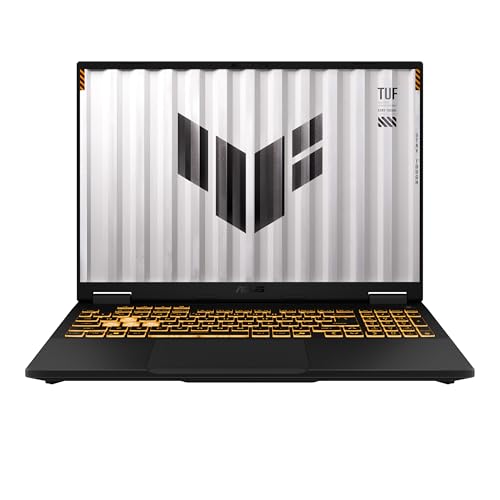
| 4 ASUS TUF Gaming F16, RTX 5050 | ASUS | 13.94 × 10.59 × 0.7 in | 4.9 lb | 16-inch, 165Hz FHD+ display | Check price |
| 5 ASUS ROG Strix G18 18-Inch Gaming Laptop | ASUS | 11.73 × 15.71 × 1.26 in | 7.1 lb | 18-inch 240Hz display with 100% DCI-P3 coverage | Check price |
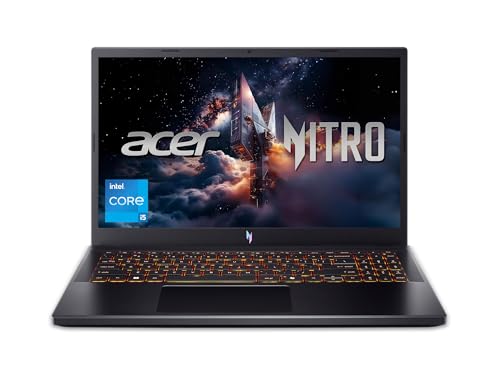
| 6 Acer Nitro V Slim 16-Inch RTX 5070 Laptop | Acer | 10.4 × 14.1 × 0.79 in | 4.6 lb | 16-inch, 180Hz WQXGA display | Check price |
| 7 HP Omen 16 Gaming Laptop, RTX 5070 | HP | 10.59 × 14.07 × 1 in | 5.4 lb | GeForce RTX 5070 graphics | Check price |
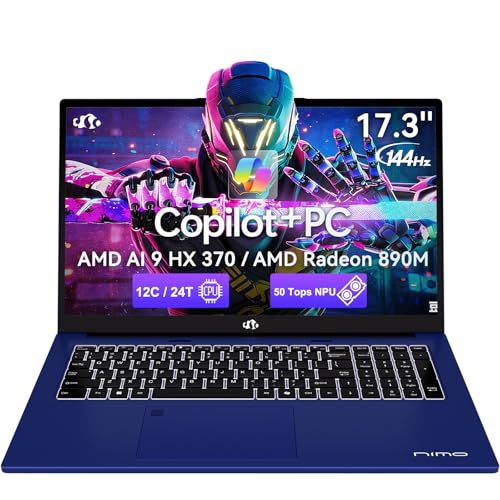
| 8 NIMO 17.3-Inch Laptop, Ryzen AI 9 HX 370 | NIMO | 14.07 × 8.98 × 0.76 in | 4.6 lb | Large 17.3-inch, 144Hz display | Check price |
Sizes and weights as listed by the manufacturer on Amazon. Check the retailer for current price and availability.
Pros
- 16GB memory and 512GB NVMe SSD
- Two M.2 slots for upgrades
- Wi-Fi 6 and Bluetooth 5.2
- Windows 11 Pro included
Cons
- Gaming graphics capability is not specified
- Who should skip it: players seeking specified graphics performance
Pros
- 16GB RAM and 512GB SSD
- Full HD display
- Windows 11 Pro and Office included
- Backlit keyboard
- Two-year warranty stated
Cons
- Graphics processor is not specified
- Battery runtime is not stated
- Who should skip it: buyers needing confirmed gaming graphics performance
Pros
- 16-inch WQXGA 120Hz display
- RTX 5050 Laptop GPU
- 16GB DDR5 memory
- 1TB SSD
Cons
- Weighs 5.49 pounds
- Who should skip it: travelers seeking a lighter laptop
Pros
- 16-inch, 165Hz FHD+ display
- 100% sRGB color coverage
- NVIDIA Advanced Optimus
- Wi-Fi 6E
Cons
- 512GB SSD may be tight for larger game libraries
- Who should skip it: travelers prioritizing a lighter laptop

Pros
- 18-inch 240Hz display with 100% DCI-P3 coverage
- 64GB RAM and 4TB SSD
- Thunderbolt 4 and HDMI 2.1 connectivity
- Windows 11 Pro included
Cons
- 7.05-pound weight and large 18-inch chassis
- Who should skip it: frequent travelers prioritizing portability

Pros
- 16-inch, 180Hz WQXGA display
- Dedicated RTX 5070 graphics
- USB-C 4.0 and Gigabit Ethernet
- Windows 11 Pro
Cons
- Who should skip it: users needing more than 512GB storage

Pros
- GeForce RTX 5070 graphics
- 32GB RAM and 1TB SSD
- 2560 x 1600, 240Hz display
- HDMI 2.1 and Ethernet ports
Cons
- 5.4 lb weight limits carry-friendly appeal
- Who should skip it: travelers prioritizing a lightweight laptop
Pros
- Large 17.3-inch, 144Hz display
- 32GB memory and 2TB SSD
- USB 4.0 connectivity
- Fingerprint reader and numeric keypad
Cons
- Weighs 4.6 pounds
- Who should skip it: frequent travelers prioritizing lighter laptops
Best Overall Gaming Laptop for Flight Simulators: HP Omen 16 Gaming AI Laptop 16" WQXGA 240Hz
The HP Omen 16 Gaming AI Laptop 16" WQXGA 240Hz pairs an RTX 5070 with 32GB RAM and a 1TB SSD, a well-rounded listed configuration for a simulator library and demanding workloads. Its 16-inch 2560 x 1600 display is rated at 240Hz and 500 nits, with 100% sRGB coverage. The product page does not specify the GPU’s power limit, so compare that detail with other RTX 5070 laptops before choosing on graphics alone. Skip it if you want an 18-inch screen or need a confirmed GPU power limit before buying.
See the HP Omen 16 Gaming AI Laptop 16" WQXGA 240Hz on Amazon.
Best Large-Screen Gaming Laptop for Flight Simulators: ASUS ROG Strix G18 G815 Gaming AI Laptop 18"
The ASUS ROG Strix G18 G815 Gaming AI Laptop 18" stands out for its 18-inch 2560 x 1600, 240Hz display and listed 64GB RAM and 4TB SSD. It also specifies an RTX 5070, HDMI 2.1 FRL, Thunderbolt 4, USB-C, and Ethernet, useful details for a cockpit-style desk with peripherals and a wired network. The trade-off is its large display format, and the listing does not state laptop weight. Skip it if portability or a smaller footprint matters more than screen area.
See the ASUS ROG Strix G18 G815 Gaming AI Laptop 18" on Amazon.
Related guides: Best Gaming Laptops for GTA 6, Best Gaming Laptops for World of Warcraft and Best ASUS Gaming Laptops for GTA 6.
Best RTX 5070 Value Configuration for Flight Simulators: Acer Nitro V Slim Gaming AI Laptop 16" WQXGA
The Acer Nitro V Slim Gaming AI Laptop 16" WQXGA lists an RTX 5070 alongside a 16-inch 2560 x 1600, 180Hz display and a Ryzen 7 260 processor. Its 3 USB-A ports, USB-C 4.0, HDMI, Ethernet, and MicroSD reader give you a broad set of stated connections. It comes with 16GB RAM and a 512GB SSD, less memory and storage than the HP Omen and ASUS ROG options above. Skip it if you want 32GB or more RAM and at least 1TB of listed storage out of the box.
See the Acer Nitro V Slim Gaming AI Laptop 16" WQXGA on Amazon.
Best 165Hz Display for Flight Simulators: ASUS TUF Gaming F16, RTX 5050
The ASUS TUF Gaming F16, RTX 5050 combines an RTX 5050 with a 16-inch FHD+ 165Hz display, 16GB DDR5, and a 512GB PCIe Gen4 SSD. Its product page specifies a 115W maximum GPU power limit and a display with 100% sRGB, useful comparison points that are not stated for every laptop here. The RTX 5050 is a different graphics tier from the RTX 5070 configurations, and the screen resolution is lower than the WQXGA choices. Skip it if your priority is the listed RTX 5070 class or a 2560 x 1600 screen.
See the ASUS TUF Gaming F16, RTX 5050 on Amazon.
Key Numbers at a Glance
- Listed display sizes range from 16 inches on the ASUS TUF Gaming F16, RTX 5050 to 18 inches on the ASUS ROG Strix G18 G815 Gaming AI Laptop 18".
- Display refresh rates range from 120Hz on the Alienware 16 Aurora RTX 5050 Laptop to 240Hz on the HP Omen 16 Gaming AI Laptop 16" WQXGA 240Hz and ASUS ROG Strix G18 G815 Gaming AI Laptop 18".
- Listed memory ranges from 16GB on the Acer Nitro V Slim Gaming AI Laptop 16" WQXGA to 64GB on the ASUS ROG Strix G18 G815 Gaming AI Laptop 18".
- Listed SSD capacities range from 512GB on the ASUS TUF Gaming F16, RTX 5050 to 4TB on the ASUS ROG Strix G18 G815 Gaming AI Laptop 18".
How to Choose a Gaming Laptop for Flight Simulators
Graphics hardware and power limits
Bottom line: Start with the dedicated GPU, then compare its stated power limit rather than assuming every laptop with the same GPU performs alike. These listings include RTX 5050 options from ASUS and Alienware, and RTX 5070 configurations from Acer, HP, and ASUS. The ASUS TUF F16 specifies a 115W maximum GPU power limit, while the other listed GPU power limits are not stated here. If your simulator is graphically demanding, compare the specific GPU and its power details, and confirm requirements for your chosen simulator before purchase.
Processor, memory, and storage
Bottom line: Choose enough memory and SSD space for your simulator and add-ons, not just a high processor core count. The HP Omen lists a 10-core Ryzen AI 9 365, 32GB RAM, and a 1TB SSD; the ASUS ROG lists an Intel 24-core Ultra 9 275HX, 64GB RAM, and 4TB SSD. Those larger capacities suit buyers who want more room for applications and files, but the product pages do not establish simulator frame rates or storage upgrade options. Check the simulator’s requirements and confirm whether memory or storage can be upgraded before ordering.
Display resolution, size, and refresh rate
Bottom line: Match resolution and screen size to your visual priorities and the graphics configuration. The Acer and HP offer 16-inch 2560 x 1600 panels, while the ASUS ROG pairs 2560 x 1600 resolution with an 18-inch screen. A 240Hz refresh rate is listed for the HP and ASUS ROG, but that specification alone does not mean a simulator will render at that rate. Consider the laptop panel’s resolution and whether you will connect an external monitor; the monitor category can help you compare separate displays for a larger cockpit view.
Ports and cockpit peripherals
Bottom line: Count the ports you need for your controls, display, network, and other desk gear before buying. The ASUS ROG lists HDMI 2.1 FRL, Thunderbolt 4, USB-C, USB-A, and RJ45 Ethernet; the Acer lists HDMI, USB-C 4.0, USB-A, and Ethernet. These are useful differences if you plan to connect external screens or flight controls, but a port name alone does not confirm that a particular device or display mode will work. Check the laptop’s detailed port specifications and your peripherals’ connection requirements.
Cooling, desk space, and mobility
Bottom line: A powerful simulator laptop needs room for airflow and a desk that fits its screen and connected gear. The Alienware 16 Aurora models describe a Cryo-Chamber cooling design, and the ASUS TUF F16 lists Arc Flow Fans and a full-width heatsink and vent. Those are design claims, not noise or sustained-performance measurements; product pages here do not give comparable fan-noise figures or laptop weights. Check the maker’s dimensions and operating guidance, and plan for the space needed by the laptop, charger, and peripherals.
How We Compared These Products
This guide is based on product research, not firsthand evaluation. We compared the listed processor and graphics configurations, memory and SSD capacity, screen specifications, ports, and described cooling features; product pages do not provide a consistent set of simulator benchmarks, GPU power limits, laptop dimensions, or noise measurements, so those should not be inferred.
Which Option Fits Your Setup?
For a larger built-in view and high listed memory and storage, the ASUS ROG Strix G18 G815 is the clearest match; for a 16-inch RTX 5070 configuration with 32GB RAM and 1TB SSD, consider the HP Omen. If a 16-inch FHD+ screen and a stated 115W RTX 5050 power limit fit your priorities, the ASUS TUF F16 offers those specifics. Compare your simulator requirements and desk space before settling on a graphics tier or display.
Mistakes to Avoid When Choosing a Flight Simulator Laptop
- Choosing by GPU name alone. Laptop power limits differ; compare stated GPU wattage and confirm missing details with the manufacturer.
- Assuming a high refresh rate guarantees smooth simulator performance. A 240Hz panel is a display capability, not a promised frame rate; balance resolution and graphics hardware.
- Ignoring storage needs. The listed drives range from 512GB to 4TB; estimate room for the simulator and any add-ons you plan to keep installed.
- Overlooking ports and desk fit. Confirm your controls and monitor connections, then check the laptop’s dimensions and placement requirements with the product page.
Frequently Asked Questions
Do flight simulators need a dedicated graphics card?
Simulator graphics requirements vary by software and settings. The KAIGERR and NIMO listings describe Radeon integrated graphics, while several other models list dedicated NVIDIA GeForce RTX graphics; check the requirements for your specific simulator before choosing.
Is an RTX 5070 laptop better than an RTX 5050 laptop for flight simulation?
The listed RTX 5070 laptops have a higher graphics model number, but power limits and configuration details are not consistently stated, so the model name alone does not establish a performance result. Compare the GPU power limit, display resolution, and simulator requirements; the ASUS TUF F16 is the option here that specifies a 115W maximum GPU power limit.
Is 16GB of RAM enough for a flight simulator?
Suitability depends on the simulator and what else you run at the same time. Several listings have 16GB, while the HP Omen specifies 32GB and the ASUS ROG specifies 64GB; check the software maker’s requirements and whether the laptop permits a memory upgrade.
Can I connect flight controls and an external monitor?
The listed ports vary by model. For example, the ASUS ROG specifies HDMI 2.1 FRL, Thunderbolt 4, USB-C, USB-A, and Ethernet, while the Acer lists HDMI, USB-C 4.0, USB-A, and Ethernet. Verify that your controls’ connectors and the display’s required connection are supported by the exact configuration.
Should I choose a 16-inch or 18-inch laptop for flight simulation?
The ASUS ROG is the listed 18-inch option, while the HP Omen, Acer Nitro, and ASUS TUF have 16-inch displays. An 18-inch panel gives you a larger built-in viewing area, while a 16-inch format takes less screen space; check the product dimensions and your desk layout before deciding.
Is a 240Hz screen necessary for a flight simulator?
No listing establishes that 240Hz is necessary for a particular simulator. The HP Omen and ASUS ROG specify 240Hz, while the Acer specifies 180Hz and the ASUS TUF specifies 165Hz; choose based on your preferred display characteristics and the graphics performance your simulator can use.


Write Your Review
No reviews yet. Be the first to share your experience!